
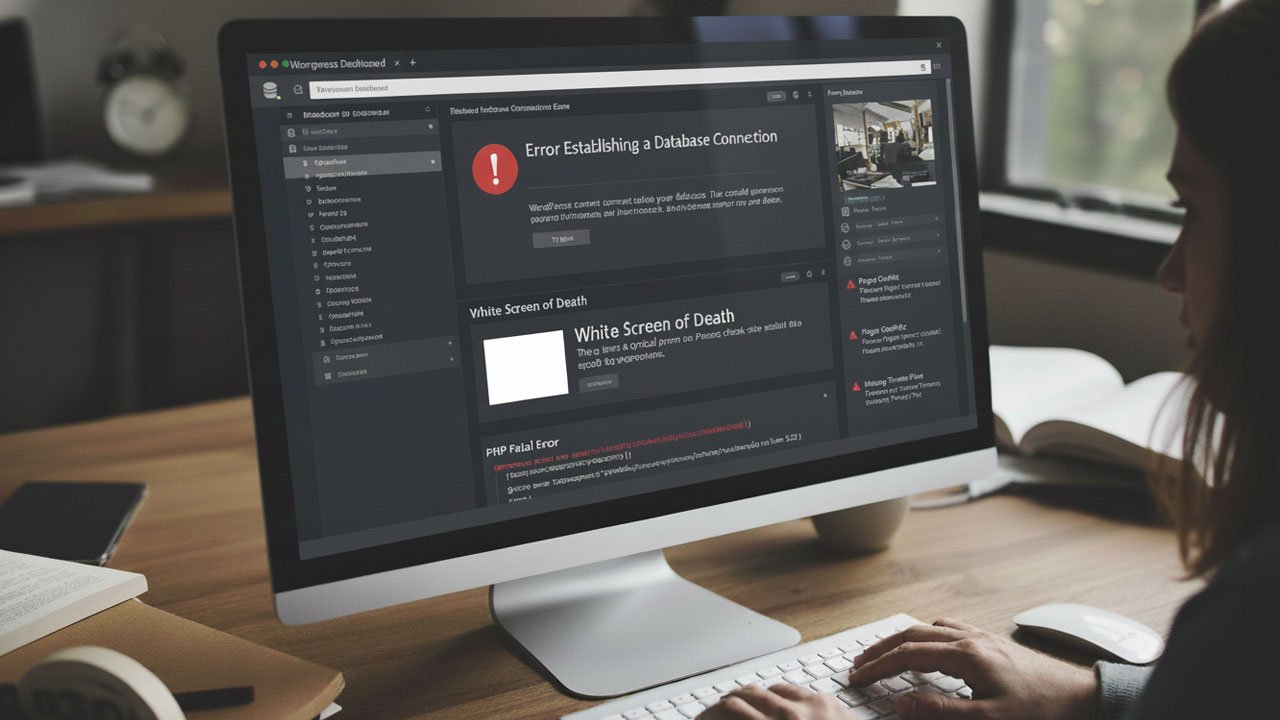
Hey there! If you’re reading this, chances are your WordPress site is giving you trouble. Don’t worry, you’re not alone. Every single WordPress user faces errors at some point. The good news? Most common WordPress errors are pretty easy to fix once you know what to do.
I’ve been working with WordPress for over a decade, and I’ve seen (and fixed) pretty much every error you can imagine. In this guide, I’m going to walk you through the most common WordPress problems and show you exactly how to solve them in plain English, no tech jargon.
Whether you’re dealing with a scary white screen, a database connection error, or weird 404 pages, I’ve got you covered. Let’s dive in and get your site back on track.
1. White Screen of Death (WSoD) – Most Common WordPress Errors
This is probably the scariest WordPress error because your entire site just shows a blank white screen. No error message, nothing, just white. But here’s the thing: it’s usually easier to fix than it looks.
What Causes It?
The white screen usually happens because of:
- A plugin that’s not playing nice with your site
- A theme that has a coding error
- Your site is running out of memory
- A PHP version mismatch
How to Fix It?
Step 1: Disable All Your Plugins
Since you can’t access your dashboard, you’ll need to do this through FTP or your hosting control panel’s File Manager.
- Connect to your site using FTP (like FileZilla) or open File Manager in cPanel
- Go to the wp-content folder
- Find the plugins folder and rename it to plugins-disabled
- Check your site now. If it works, one of your plugins was the problem
Once your site is back, rename the folder to plugins and activate plugins one by one to find the culprit.
Step 2: Switch to a Default Theme
If disabling plugins didn’t work, your theme might be the issue.
- In your wp-content folder, find the themes folder
- Rename your active theme folder (for example, change my-theme to my-theme-disabled)
- WordPress will automatically switch to a default theme like Twenty Twenty-Four
- Check if your site works now
Step 3: Increase Memory Limit
Sometimes WordPress just needs more memory to run properly.
- Find the wp-config.php file in your WordPress root directory
- Open it and add this line just before the “That’s all, stop editing!” comment:
define('WP_MEMORY_LIMIT', '256M');- Save the file and check your site
Step 4: Enable Debug Mode
If you’re still stuck, turn on debug mode to see the actual error message.
Add these lines to your wp-config.php file:
define('WP_DEBUG', true);
define('WP_DEBUG_LOG', true);
define('WP_DEBUG_DISPLAY', false);
Now check the wp-content folder for a debug.log file. It will tell you exactly what’s going wrong.
2. Error Establishing a Database Connection
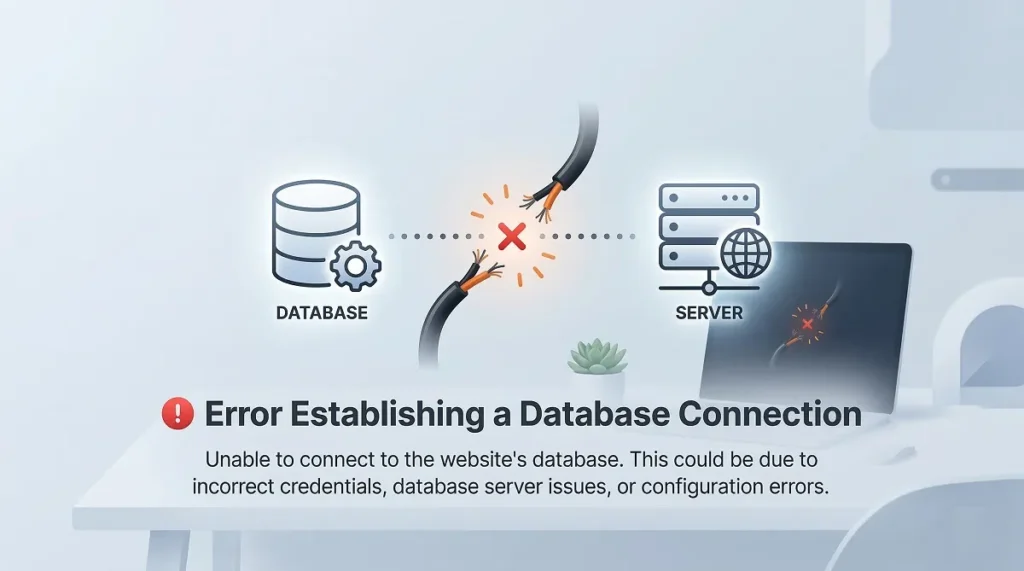
This error means WordPress can’t talk to your database. It’s like trying to call someone, but the phone line is disconnected.
What Causes It?
- Wrong database credentials in your wp-config.php file
- Your database server is down
- Corrupted database
- Too many visitors are overwhelming your hosting
How to Fix It
Step 1: Check Your Database Credentials
- Open your wp-config.php file
- Look for these lines and make sure they’re correct:
define('DB_NAME', 'your_database_name');
define('DB_USER', 'your_database_username');
define('DB_PASSWORD', 'your_database_password');
define('DB_HOST', 'localhost');- Log in to your hosting control panel (like cPanel)
- Go to “MySQL Databases” or “phpMyAdmin.”
- Check that your database name, username, and password match what’s in wp-config.php
Pro Tip: In 90% of cases, DB_HOST should be localhost. But some hosts use different values. Check with your hosting provider if you’re not sure.
Step 2: Test Database Connection
Create a new file called test-db.php in your WordPress root folder and add this code:
Replace the values with your actual credentials and visit yoursite.com/test-db.php in your browser. If it fails, your credentials are wrong.
Step 3: Repair Your Database
Sometimes the database gets corrupted. WordPress has a built-in repair tool.
- Add this to your wp-config.php file:
define('WP_ALLOW_REPAIR', true);- Visit yoursite.com/wp-admin/maint/repair.php
- Click “Repair Database”
- After it’s done, remove that line from wp-config.php for security
Step 4: Contact Your Host
If none of this works, your database server might be down. Contact your hosting support; they can check if there’s a server issue.
3. Internal Server Error (500)
The 500 error is super vague. It basically means “something went wrong, but I’m not sure what.” Helpful, right? Don’t worry, we can figure it out.
What Causes It?
- Corrupted .htaccess file
- Plugin conflicts
- PHP memory limit issues
- Corrupted WordPress core files
- Server configuration problems
How to Fix It
Step 1: Check Your .htaccess File
The .htaccess file controls how your server handles requests. If it’s corrupted, you’ll see a 500 error.
- Connect via FTP or File Manager
- Find the .htaccess file in your WordPress root directory
- Rename it to .htaccess-old
- Check your site. If it works, your .htaccess was the problem
Generate a New .htaccess File:
- Log in to your WordPress dashboard
- Go to Settings → Permalinks
- Don’t change anything, just click “Save Changes.”
- WordPress will create a fresh .htaccess file for you
Step 2: Deactivate All Plugins
Just like with the white screen, plugin conflicts can cause 500 errors.
- Rename your plugins folder to plugins-disabled via FTP
- If your site works, rename it back and activate plugins one by one
- When the error returns, you’ve found the problem plugin
Step 3: Increase PHP Memory Limit
Add this to your wp-config.php file:
define('WP_MEMORY_LIMIT', '256M');If that doesn’t work, you might need to increase the PHP memory limit on your server. Contact your host and ask them to increase it to at least 256MB.
Step 4: Re-upload WordPress Core Files
Sometimes WordPress files get corrupted during updates.
- Download a fresh copy of WordPress from WordPress.org
- Extract it on your computer
- Delete the wp-content folder and wp-config-sample.php from the fresh download
- Upload the remaining files via FTP, overwriting the old ones
- This replaces corrupted core files without touching your content or settings
4. 404 Error / Page Not Found
If your posts and pages are showing 404 errors but your homepage works fine, your permalinks are probably broken. This is one of the easiest WordPress common errors to fix.
What Causes It?
- Broken permalink structure
- Corrupted .htaccess file
- Server rewrite rules not working
- A plugin messing with your URLs
How to Fix It
Step 1: Reset Your Permalinks
This works about 80% of the time and takes 10 seconds.
- Log in to your WordPress dashboard
- Go to Settings → Permalinks
- Don’t change anything, just click “Save Changes.”
- Check your site
Seriously, that’s it. WordPress will regenerate the rewrite rules, and your 404 errors will likely disappear.
Step 2: Check Your .htaccess File
If resetting permalinks didn’t work, check your .htaccess file.
- Connect via FTP or File Manager
- Open the .htaccess file in your WordPress root directory
- Make sure it contains the standard WordPress code:
# BEGIN WordPress
# The directives (lines) between "BEGIN WordPress" and "END WordPress" are
# dynamically generated, and should only be modified via WordPress filters.
# Any changes to the directives between these markers will be overwritten.
<IfModule mod_rewrite.c>
RewriteEngine On
RewriteRule .* - [E=HTTP_AUTHORIZATION:%{HTTP:Authorization}]
RewriteBase /
RewriteRule ^index.php$ - [L]
RewriteCond %{REQUEST_FILENAME} !-f
RewriteCond %{REQUEST_FILENAME} !-d
RewriteRule . /index.php [L]
</IfModule>

# END WordPress- If it’s different or missing, replace it with the above code
Step 3: Check File Permissions
Your .htaccess file needs the right permissions to work.
- Right-click the .htaccess file in your FTP client
- Select “File Permissions” or “CHMOD“
- Set it to 644
- Check your site
Step 4: Contact Your Host
If you’re on an Nginx server (instead of Apache), .htaccess won’t work. You’ll need to ask your host to configure the rewrite rules on their end.
5. Memory Exhausted Error
This error shows up when WordPress tries to use more memory than your server allows. You’ll see something like: “Fatal error: Allowed memory size of 134217728 bytes exhausted.”
What Causes It?
- Too many plugins are running at once
- A poorly coded plugin or theme
- Large images are being processed
- Limited hosting resources
How to Fix It
Step 1: Increase WordPress Memory Limit
- Open your wp-config.php file
- Add this line just before “That’s all, stop editing!”:
define('WP_MEMORY_LIMIT', '256M');- For admin operations, you can also add:
define('WP_MAX_MEMORY_LIMIT', '512M');- Save and check your site
Step 2: Increase PHP Memory Limit
Sometimes you need to increase the server’s PHP memory limit, too.
Method A: Via php.ini
If you have access to your php.ini file:
- Find the line that says memory_limit
- Change it to memory_limit = 256M
- Save and restart your server
Method B: Via .htaccess
Add this to your .htaccess file:
php_value memory_limit 256M
Method C: Ask Your Host
Many shared hosting plans don’t let you change these settings. Contact your host and ask them to increase your PHP memory limit to 256MB or higher.
Step 3: Find the Memory Hog
If you keep running out of memory even after increasing it, something on your site is using way too much.
- Deactivate all plugins
- Activate them one by one
- When the error returns, you’ve found the problem
Consider switching to a better-coded alternative or upgrading your hosting plan.
6. Maximum Execution Time Exceeded
This error means a PHP script took too long to run, and your server killed it. You’ll see something like: “Fatal error: Maximum execution time of 30 seconds exceeded.”
What Causes It?
- Importing large files
- Running complex database queries
- Slow external API calls
- Running backups or migrations
- Poorly optimized code
How to Fix It
Step 1: Increase Execution Time in wp-config.php
Add this to your wp-config.php file:
set_time_limit(300);This gives scripts 5 minutes (300 seconds) instead of 30 seconds.
Step 2: Increase via .htaccess
Add this to your .htaccess file:
php_value max_execution_time 300Step 3: Increase via php.ini
If you have access to php.ini:
- Find max_execution_time
- Change it to max_execution_time = 300
- Save and restart your server
Step 4: Contact Your Host
If you can’t change these settings yourself, contact your hosting support. They can increase the limit for you.
7. Login Redirect Loop
You try to log in, the page refreshes, and… you’re back at the login screen. Over and over again. Frustrating!
What Causes It?
- URL mismatch between your Site URL and WordPress URL settings
- Corrupted cookies
- Plugin conflicts
- Incorrect .htaccess rules
- Server-level redirect issues
How to Fix It
Step 1: Clear Your Browser Cookies
Sometimes old cookies cause this problem.
- Clear your browser’s cookies for your site
- Try logging in again with a fresh browser or incognito window
Step 2: Check Your Site URLs
- Open phpMyAdmin from your hosting control panel
- Find your WordPress database and open the wp_options table
- Look for two rows: siteurl and home
- Make sure both have the same URL, including http:// or https://
To change them:
- Click “Edit” on each row
- Update the option_value to your correct site URL
- Make sure both match exactly (including the protocol)
Step 3: Fix via wp-config.php
Add these lines to your wp-config.php file:
define('WP_HOME', 'https://yoursite.com');
define('WP_SITEURL', 'https://yoursite.com');
Replace yoursite.com with your actual domain.
Step 4: Deactivate All Plugins
A plugin might be causing the redirect loop.
- Rename your plugins folder to plugins-disabled via FTP
- Try logging in
- If it works, rename it back and activate plugins one by one
Step 5: Generate New .htaccess
- Delete your .htaccess file via FTP
- Log in to your dashboard (should work now)
- Go to Settings → Permalinks → Save Changes
- WordPress will create a fresh .htaccess file
8. Mixed Content Error (SSL Issues)
You installed an SSL certificate, but your browser still shows “Not Secure” or blocks some content. This happens when your site loads some things over HTTPS and other things over HTTP.
What Causes It?
- Hard-coded HTTP links in your content
- Plugins loading HTTP resources
- Images or scripts from HTTP sources
- Theme files using HTTP instead of HTTPS
How to Fix It
Step 1: Check If You Actually Have Mixed Content
- Open your site in Chrome
- Right-click and select “Inspect.”
- Go to the Console tab
- Look for warnings about “Mixed Content” or “blocked:mixed-content”
You can also use WhyNoPadlock.com to scan your site.
Step 2: Use a Plugin (Easiest Method)
Install one of these free plugins:
- Really Simple SSL – Automatically fixes most mixed content issues
- SSL Insecure Content Fixer – More control over what gets fixed
- Install and activate the plugin
- Go to Settings → SSL (or the plugin’s settings page)
- The plugin will scan and fix mixed content automatically
Step 3: Update Your Database URLs
If plugins don’t fully fix it, update your database manually.
- Install the “Better Search Replace” plugin
- Go to Tools → Better Search Replace
- In “Search for:” enter http://yoursite.com
- In “Replace with:” enter https://yoursite.com
- Select all tables
- Check “Run as dry run” first to see what will change
- If it looks good, uncheck dry run and run it for real
Step 4: Force HTTPS in .htaccess
Add this code to the top of your .htaccess file:
RewriteEngine On
RewriteCond %{HTTPS} off
RewriteRule ^(.*)$ https://%{HTTP_HOST}%{REQUEST_URI} [L,R=301]
This forces all traffic to use HTTPS.
9. Plugin Conflicts
Sometimes two plugins just don’t get along, or a plugin doesn’t play nice with your theme. This can cause all sorts of weird WordPress common errors.
How to Identify Plugin Conflicts
Step 1: Use Health Check Plugin (Best Method)
This is the smartest way to find conflicts without affecting your live site.
- Install the “Health Check & Troubleshooting” plugin
- Activate it
- Go to Tools → Site Health → Troubleshooting
- Click “Enable Troubleshooting Mode”
Here’s the cool part: Your site visitors will see everything normally. Only you will see the site with all plugins disabled.
- Activate plugins one by one in troubleshooting mode
- Check if the error appears after each activation
- When you find the problem plugin, exit troubleshooting mode
- Deactivate that plugin normally
Step 2: Manual Method (If You Can’t Use Plugins)
- Rename your plugins folder to plugins-disabled via FTP
- Check if the error is gone
- If yes, rename it back to plugins
- Rename individual plugin folders one by one
- After renaming each one, check your site
- When the error appears, the plugin you just renamed is the culprit
What to Do After Finding the Conflict
- Update the plugin – An update might fix the conflict
- Contact the developer – Report the issue so they can fix it
- Find an alternative – Look for a similar plugin that works
- Choose between plugins – If two plugins conflict, keep the more important one
10. Failed Auto-Update
WordPress, themes, and plugins update automatically. Sometimes the update fails, and your site gets stuck.
What Causes It?
- Lost connection during update
- File permission issues
- Insufficient memory or execution time
- Incomplete download
How to Fix It
Step 1: Delete the .maintenance File
When WordPress updates, it creates a .maintenance file. If the update fails, this file might not get deleted.
- Connect via FTP or File Manager
- Look for a file called .maintenance in your WordPress root directory
(It starts with a dot, so enable “Show hidden files” in your FTP client) - Delete this file
- Your site should work now
Step 2: Manually Update WordPress
If WordPress didn’t update properly:
- Download the latest WordPress version from WordPress.org
- Extract it on your computer
- Delete the wp-content folder and wp-config-sample.php from the download
- Upload the remaining files via FTP, overwriting old files
- Visit yoursite.com/wp-admin/upgrade.php to finish the update
Step 3: Manually Update Plugins/Themes
- Download the latest version of the plugin or theme
- Delete the old plugin/theme folder via FTP
- Upload the new version
- Activate it again from your dashboard
11. Connection Timed Out
This error means your site took too long to load, and the server gave up. You’ll see something like “The site took too long to respond” or “Connection timed out.”
What Causes It?
- Shared hosting with limited resources
- Too many plugins are running
- Unoptimized images or code
- A large traffic spike is overwhelming your server
- Theme or plugin with inefficient code
How to Fix It
Step 1: Increase PHP Limits
Add these to your wp-config.php file:
define('WP_MEMORY_LIMIT', '256M');
set_time_limit(300);
Also, add this to your .htaccess file:
php_value max_execution_time 300
php_value memory_limit 256M
Step 2: Deactivate Plugins
- Rename your plugins folder via FTP
- If your site loads, a plugin was causing timeouts
- Activate plugins one by one to find the slow one
Step 3: Switch to a Default Theme
Your theme might be poorly coded:
- Rename your theme folder via FTP
- WordPress will switch to a default theme
- If timeouts stop, your theme was the problem
Step 4: Optimize Your Site
- Install a caching plugin like WP Super Cache or W3 Total Cache
- Optimize images (compress them before uploading)
- Use a CDN to serve static files faster
- Consider upgrading your hosting plan
Step 5: Contact Your Host
If nothing works, your hosting might just be too slow. Talk to your host about upgrading or consider switching to better hosting.
12. Syntax Error
Syntax errors happen when there’s a mistake in your PHP code. You’ll see something like “Parse error: syntax error, unexpected…”
What Causes It?
- Typo in theme or plugin files
- Missing semicolon, bracket, or quotation mark
- Copying code from a website that changed the quotes
- Editing files directly without backup
How to Fix It
Step 1: Read the Error Message
The error message tells you exactly where the problem is:
Parse error: syntax error in /home/user/public_html/wp-content/themes/your-theme/functions.php on line 47
This tells you:
- Which file has the error (functions.php)
- Which line number (47)
Step 2: Fix the Error
- Connect via FTP or File Manager
- Open the file mentioned in the error
- Go to the line number mentioned
- Look for common mistakes:
- Missing semicolon at the end of a line
- Missing closing bracket } or )
- Mismatched quotes (using ‘ and ” incorrectly)
- Extra or missing commas
- Fix the mistake and save
Step 3: If You Can’t Fix It, Restore the Old Version
If you recently edited the file:
- Delete the edited file via FTP
- Re-upload the original version (from a backup or fresh download)
- Your site should work again
Pro Tip: Never edit WordPress files directly on your live site. Always make a backup first, or edit on a staging site and test before uploading.
13. Upload: Failed to Write File to Disk
When you try to upload an image or file, you see “Upload: Failed to write file to disk.” This is a server permissions issue.
What Causes It?
- Incorrect folder permissions
- Server disk space full
- PHP temporary folder issues
- Hosting restrictions
How to Fix It
Step 1: Check Folder Permissions
- Connect via FTP
- Right-click the wp-content/uploads folder
- Select “File Permissions” or “CHMOD“
- Set it to 755 for folders and 644 for files
- Check “Recurse into subdirectories.”
- Apply the changes
Step 2: Check Disk Space
- Log in to your hosting control panel (cPanel)
- Check your disk space usage
- If you’re at 100%, you need to delete files or upgrade your plan
Step 3: Set PHP Temporary Directory
Add this to your wp-config.php file:
define('WP_TEMP_DIR', dirname(FILE) . '/wp-content/temp/');Then, create a temp folder inside wp-content with 755 permissions.
Step 4: Contact Your Host
If none of this works, there might be a server configuration issue. Contact your hosting support.
14. 403 Forbidden Error
A 403 error means you don’t have permission to access something on your site. You’ll see “403 Forbidden – You don’t have permission to access this resource.”
What Causes It?
- Incorrect file permissions
- Corrupted .htaccess file
- The security plugin is blocking access
- IP address blocked by the server
- Lack of an index file
How to Fix It
Step 1: Fix File Permissions
- Connect via FTP
- Set folder permissions to 755 and file permissions to 644
- For the WordPress root directory, apply recursively to all folders and files
Step 2: Check Your .htaccess File
- Rename .htaccess to .htaccess-old via FTP
- Check your site
- If it works, regenerate .htaccess by going to Settings → Permalinks → Save
Step 3: Deactivate Security Plugins
Security plugins sometimes block legitimate access:
- Rename your plugins folder via FTP
- If the 403 error goes away, a plugin was blocking you
- Activate plugins one by one to find the culprit
Step 4: Create an Index File
Some servers require an index file:
- Create a blank index.php file in your WordPress root directory
- Add this simple code:
- Upload it via FTP
15. Briefly Unavailable for Scheduled Maintenance
This message appears during WordPress updates. Sometimes it gets stuck and won’t go away.
What Causes It?
- Failed or interrupted update
- The .maintenance file didn’t get deleted automatically
- Server timeout during update
How to Fix It
This is super easy:
- Connect to your site via FTP or File Manager
- Look for a file called .maintenance in your WordPress root directory
(Remember to show hidden files in your FTP client) - Delete the .maintenance file
- Refresh your site
That’s it! The “scheduled maintenance” message should be gone.
If you don’t see a .maintenance file, try these steps:
- Re-upload WordPress core files from a fresh download
- Run the database upgrade by visiting yoursite.com/wp-admin/upgrade.php
Bonus Tips to Prevent WordPress Common Errors
Now that you know how to fix WordPress common errors, here’s how to prevent them from happening in the first place:
1. Keep Everything Updated
- Update WordPress core, plugins, and themes regularly
- Updates include bug fixes and security patches
- Always back up before updating
2. Use Quality Plugins and Themes
- Only use plugins from trusted sources (WordPress.org or reputable developers)
- Check reviews and recent update dates before installing
- Avoid installing too many plugins—quality over quantity
3. Backup Regularly
- Use a backup plugin like UpdraftPlus or BackupBuddy
- Set up automatic daily or weekly backups
- Store backups off-site (not just on your server)
- Test your backups occasionally to make sure they work
4. Use Good Hosting
- Cheap hosting causes most WordPress performance problems
- Invest in quality managed WordPress hosting if possible
- Look for hosts that offer: PHP 8.0+, SSD storage, and good support
5. Enable Debug Mode During Development
When making changes, turn on debug mode to catch errors early:
define('WP_DEBUG', true);
define('WP_DEBUG_LOG', true);
define('WP_DEBUG_DISPLAY', false);
6. Use a Staging Site
- Test updates and changes on a staging site first
- Many hosts offer one-click staging environments
- Never make changes directly on your live site
7. Monitor Your Site
- Use uptime monitoring services like UptimeRobot (free)
- Install a security plugin like Wordfence or Sucuri
- Check your site regularly for issues
8. Optimize Performance
- Use a caching plugin
- Optimize images before uploading
- Use a CDN for faster loading
- Regularly clean your database with a plugin like WP-Optimize
Final Thoughts
Dealing with WordPress errors can be frustrating, but most of them are fixable with a bit of patience and the right steps. The key is not to panic and to work through solutions methodically.
Remember these golden rules:
- Always back up before making changes
- Make one change at a time so you know what fixed it
- Keep good records of what you’ve tried
- Don’t be afraid to ask for help from your host or a developer
Most WordPress common errors fall into a few categories: plugin conflicts, memory issues, database problems, or file permission issues. Once you understand these basics, troubleshooting becomes much easier.
Keep this guide bookmarked, and you’ll want to refer back to it the next time something goes wrong. And trust me, something will eventually go wrong. That’s just part of running a website!
Have you encountered an error that’s not on this list? Or did one of these solutions save your site? I’d love to hear about it. Drop a comment below and let me know! Happy troubleshooting, and may your WordPress site be error-free (at least most of the time)!