
Introduction
Ever thought about adding cool new features to your WordPress site? Or maybe you’ve used a plugin that didn’t do exactly what you wanted? Here’s the good news: you can build your own WordPress plugin. Seriously, it’s not as scary as it sounds.
I remember when I first heard about WordPress plugin development for beginners. I thought it was something only expert programmers could do. But guess what? It isn’t. If you can follow basic steps and understand simple code concepts, you can create a WordPress plugin that actually works and does what you want.
In this guide, we’re going to walk through everything about WordPress plugin development for beginners. We’ll start from zero and build your very first WordPress plugin from scratch. By the end of this article, you’ll understand WordPress plugin development for beginners, and you’ll have a working plugin on your WordPress site. Pretty cool, right?
What is a WordPress Plugin? (And Should You Build One?)
Let me first explain what a WordPress plugin is.
Think of WordPress as a blank notebook. By itself, it does the basic things – you can write posts, create pages, and add images. But what if you want to do something special? Like adding a contact form, tracking visitor stats, or sending newsletters? That’s where plugins come in.
A WordPress plugin is like a mini app for your website. It’s a piece of code that you add to WordPress to give it new powers. The cool part? You don’t need to mess with WordPress core files. Plugins sit alongside WordPress and do their job.
So when should you build a plugin instead of just using an existing one?
Good question. Here’s my honest take:
- Build a plugin if: You have a unique feature nobody else needs. Maybe you want to add special functionality just for your business or clients. Building custom WordPress plugin development for beginners makes sense here.
- Use an existing plugin if: someone has already solved your problem. There are thousands of free and paid plugins out there. No need to reinvent the wheel.
The beautiful thing about learning WordPress plugin development for beginners is that even if you use existing plugins, you’ll understand how they work. You’ll be able to tweak them, fix problems, or build custom additions. That’s power.
Getting Your Development Environment Ready
Before we start building, we need a safe place to work. You don’t want to test new code on your live website – if something breaks, your visitors see it immediately. Not good.
Here’s what you need:
Step 1: Install WordPress Locally
The easiest way? Use LocalWP. It’s a free tool that lets you run WordPress on your computer. No server needed. Here’s why this is amazing:
- You can break things without anyone knowing
- You can test WordPress plugin development for beginners safely
- Everything runs super fast on your machine
- You can create as many test sites as you want
Download LocalWP from their website, install it, and create a new local WordPress site. Takes about 5 minutes. I’m not kidding.
Step 2: Get a Code Editor
You need something to write your code in. Notepad will technically work, but it’s like trying to fix a car with a toothpick.
Use Visual Studio Code instead. It’s free, powerful, and perfect for WordPress plugin development for beginners. Download it, install it, and you’re ready to write code. It even highlights your mistakes in real-time, which saves you hours of frustration.
Step 3: Basic Knowledge Check
For WordPress plugin development for beginners, you don’t need to be a PHP expert. But you should know:
- PHP basics: Variables, functions, loops, and if statements
- HTML: Basic structure (this is easy)
- A tiny bit of JavaScript: Optional, but helpful
- Patience: Most important skill. Seriously.
If you’re rusty on these, that’s totally fine. You’ll pick them up as we go.
Building Your First Plugin: Step-by-Step
Alright, now comes the fun part. Let’s build something real.
Step 1: Create Your Plugin Folder and Main File
This is the foundation of WordPress plugin development for beginners.
On your computer, go to your LocalWP WordPress site. Find the folder path (you’ll see it in LocalWP). Navigate to /wp-content/plugins/.
Create a new folder here. Let’s call it my-first-plugin. Inside this folder, create a new file called my-first-plugin.php.
That’s it. You now have the basic structure.
Why does the filename matter? WordPress looks in the plugins folder for PHP files and treats them as plugins. Simple as that.
Step 2: Add the Plugin Header
Now we will create the main file of our plugin. This file will tell WordPress basic details about the plugin and will also store our first simple feature. This is an important step in WordPress plugin development for beginners because every plugin must have this header at the top.
Open the file my-first-plugin.php in VS Code. Now paste this code inside it:
<?php
/**
 * Plugin Name: My First Plugin
 * Description: A simple example plugin that adds a message after the post content.
 * Author: Your Name
 * Version: 1.0
 */

// Add a message at the end of single post content
function my_first_plugin_add_message( $content ) {

    // Only run on single blog posts
    if ( is_single() ) {
        // Your custom message
        $message = '<p><strong>Thanks for reading! Share this post with your friends.</strong></p>';

        // Add the message to the end of the content
        $content .= $message;
    }

    // Return the modified content
    return $content;
}

// Hook our function to WordPress
add_filter( 'the_content', 'my_first_plugin_add_message' );
Let us understand what is happening here in simple language:
- The comment block at the top is called the plugin header. It has the plugin name, description, author, and version.
- WordPress reads this header and shows your plugin in the Plugins area in the admin dashboard.
- The function
my_first_plugin_add_message()takes the post content as input. - Inside the function, we check
is_single()so that our message is only added to single post pages, not on the home page or archive pages. $content .= $message;means we are adding our custom message at the end of the original content.add_filter( 'the_content', 'my_first_plugin_add_message' );is a hook. It tells WordPress: “When you show the post content, first run this function and then show the updated content.”
This is the basic idea of WordPress plugin development for beginners: you write a function and then hook it into WordPress using actions or filters.
Step 3: Understand the Hook (the_content)
Before we move to settings and admin pages, it is good to understand the hook we just used. This will make the next steps easier, especially if you are serious about WordPress plugin development for beginners.
In our example, we used a filter hook called the_content. This hook runs every time WordPress displays the main content of a post.
- A filter hook allows you to change some data before it is shown.
- In this case, the data is the post content.
- Our function receives the content, adds a message, and then returns the new content.
So the flow is very simple:
- WordPress loads the post content.
- WordPress passes the content to our function because of
add_filter. - Our function adds a message at the end.
- WordPress shows the modified content to the visitor.
Once you understand this, you are one big step ahead in WordPress plugin development for beginners because most plugins use hooks like this in some way.
Step 4: Create an Admin Settings Page
Right now, our plugin always shows the same message: “Thanks for reading! Share this post with your friends.” But real plugins usually allow the site owner to change settings from the WordPress dashboard.
In this step, we will create a simple settings page where the admin can change the message text. This will make your first plugin feel more professional and will teach you an important part of WordPress plugin development for beginners.
We will add an admin menu item and a settings page. Then we will save the custom message in the WordPress database using options.
Add this code below the previous code in the same my-first-plugin.php file:
// Register admin menu
function my_first_plugin_add_admin_menu() {
    add_menu_page(
        'My First Plugin Settings',       // Page title
        'My Plugin',                      // Menu title
        'manage_options',                 // Capability (admins only)
        'my-first-plugin',                // Menu slug
        'my_first_plugin_settings_page'   // Function to display the page
    );
}
add_action( 'admin_menu', 'my_first_plugin_add_admin_menu' );
This code adds a new menu item in the WordPress admin sidebar called “My Plugin”. When you click it, WordPress will open a page that we will build next.
Now add the code for the settings page:
// Display the settings page
function my_first_plugin_settings_page() {
    ?>
    <div class="wrap">
        <h1>My First Plugin Settings</h1>

        <form method="post" action="<?php echo esc_url( admin_url( 'admin-post.php' ) ); ?>">

            <?php
            // 1. Security Nonce
            wp_nonce_field( 'my_first_plugin_save_settings', 'my_first_plugin_nonce' );

            // 2. Hidden Action Field (This tells WordPress which function to run)
            ?>
            <input type="hidden" name="action" value="my_plugin_save_action">

            <table class="form-table">
                <tr>
                    <th scope="row">
                        <label for="my_plugin_message">Custom Message:</label>
                    </th>
                    <td>
                        <input
                            type="text"
                            id="my_plugin_message"
                            name="my_plugin_message"
                            value="<?php echo esc_attr( get_option( 'my_plugin_message', 'Thanks for reading!' ) ); ?>"
                            style="width: 100%; max-width: 400px;"
                        >
                    </td>
                </tr>
            </table>

            <p class="submit">
                <input type="submit" name="submit" id="submit" class="button button-primary" value="Save Settings">
            </p>
        </form>
    </div>
    <?php
}
Here is what this part does in simple words:
- We created a form with one text input field called
my_plugin_message. - The value of this field comes from
get_option( 'my_plugin_message', 'Thanks for reading!' ).- If the option is not saved yet, it will use the default text “Thanks for reading!”.
wp_nonce_field()adds a security token so that only valid requests can save the settings.
Now we must save the settings when the form is submitted. Add this code after the previous function:
// Save the settings
function my_first_plugin_save_settings() {

    // 1. Check if the user has permission
    if ( ! current_user_can( 'manage_options' ) ) {
        wp_die( 'You do not have permission to access this page.' );
    }

    // 2. Verify security nonce
    if (
        ! isset( $_POST['my_first_plugin_nonce'] ) ||
        ! wp_verify_nonce( $_POST['my_first_plugin_nonce'], 'my_first_plugin_save_settings' )
    ) {
        wp_die( 'Security check failed. Please try again.' );
    }

    // 3. Save the data
    if ( isset( $_POST['my_plugin_message'] ) ) {
        update_option(
            'my_plugin_message',
            sanitize_text_field( $_POST['my_plugin_message'] )
        );
    }

    // 4. Redirect back to the settings page with a success flag
    wp_redirect( admin_url( 'admin.php?page=my-first-plugin&settings-updated=true' ) );
    exit;
}

// Hook format: admin_post_{hidden_action_value}
add_action( 'admin_post_my_plugin_save_action', 'my_first_plugin_save_settings' );
Now your plugin does three things:
- It shows a custom message after the post content on single posts.
- It adds a new menu item, “My Plugin” in the WordPress admin.
- It allows the admin to change the message from the settings page and saves it in the database.
If you want, in the earlier function where we added the message, you can replace the hard-coded text with the saved option, like this:
$message_text = get_option( 'my_plugin_message', 'Thanks for reading! Share this post with your friends.' );

$message = '<p><strong>' . esc_html( $message_text ) . '</strong></p>';
This makes everything connect nicely and gives you a full mini example of WordPress plugin development for beginners inside one simple plugin.
Step 5: Test Your Plugin
Time to see if this actually works.
Go back to your LocalWP site. Log in to the WordPress admin. Go to Plugins > Installed Plugins.
You should see “My First Plugin” listed there. Click Activate.
If you see any errors, don’t panic. Check:
- Do all your
<?php tags have closing ?>? - Are all your parentheses and brackets matched?
- Did you save the file?
Go to your blog page and look at a post. At the bottom, you should see your new message. Congratulations! Your WordPress plugin development for beginners project is working.
Step 6: Test and Debug
Always make sure everything works. Open your browser’s console (F12 on most browsers) and check for errors. In WordPress admin, go to Settings > Site Health and look for issues.
If something’s broken, WordPress usually tells you. The key to WordPress plugin development for beginners is not being afraid of errors – they’re just information telling you what to fix.
Common Mistakes and How to Avoid Them
After watching many people learn WordPress plugin development for beginners, I’ve noticed patterns. Here are the biggest mistakes:
Mistake 1: Not Using the WordPress Prefix
Always start your function names with something unique, like your plugin name. Don’t use generic names like update_message(). Use my_first_plugin_update_message() instead. This prevents conflicts if another plugin uses the same function name.
Mistake 2: Not Sanitizing User Input
If you accept user input in your settings, always clean it first:
$clean_input = sanitize_text_field( $_POST['my_input'] );This prevents hackers from putting bad code into your database.
Mistake 3: Not Checking Permissions
Before someone changes settings, ask: “Are they an admin?”
if ( current_user_can( 'manage_options' ) ) {
     // Safe to proceed
}
Mistake 4: Forgetting to Enable WordPress Debug Mode
In your wp-config.php file (in your WordPress root), add:
define( 'WP_DEBUG', true );
define( 'WP_DEBUG_LOG', true );
define( 'WP_DEBUG_DISPLAY', false );
Now errors go to /wp-content/debug.log instead of breaking your site. Lifesaver for WordPress plugin development for beginners.
Real-World Examples: What’s Possible
Here’s what’s cool about WordPress plugin development for beginners – once you get the basics, you can build almost anything. Let me show you what’s already out there:
Akismet – Filters spam comments. Uses hooks to check comments before they’re saved.
Yoast SEO – Analyzes your content and helps you optimize. Uses action hooks to add metaboxes in the editor.
WooCommerce – Turns WordPress into a full e-commerce store. This is a seriously complex plugin, but it started with the same basics we’re learning.
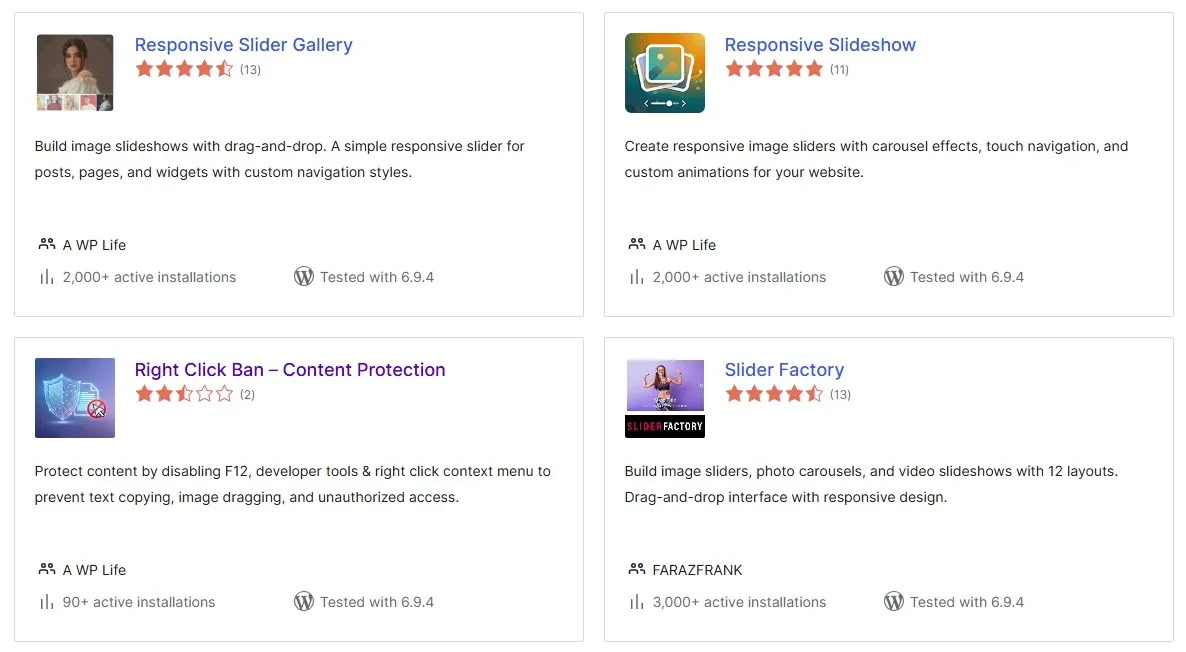
WPFrank Plugins – Real examples of WordPress plugin development for beginners made real:
- Custom admin dashboards
- Advanced form builders
- Integration tools for APIs
- Performance optimization tools
The point? WordPress plugin development for beginners opens a door to unlimited possibilities.
Packaging and Distributing Your Plugin
Once you’ve tested your plugin and it works, you might want to share it or use it on other sites.
Step 1: Create a README.txt File
In your plugin folder, create a file called readme.txt:
=== My First Plugin ===
Contributors: yourname
Tags: custom, plugin, demo
Requires at least: 5.0
Tested up to: 6.4
Stable tag: 1.0
License: GPL2

This is my first plugin that adds a custom message to blog posts.

== Description ==
A simple plugin that shows how to build WordPress plugins. It adds a custom message at the end of each blog post.

== Installation ==
1.	Upload the plugin folder to /wp-content/plugins/
2.	Activate the plugin in WordPress admin
3.	Go to My Plugin settings to customize

== FAQ ==
= Can I customize the message? =
Yes! Go to My Plugin settings and edit the custom message.

= Will this slow down my site? =
No, it's very lightweight.
Step 2: Create a ZIP File
Right-click your my-first-plugin folder and create a ZIP file. This is what you upload to other WordPress sites or share with people.
Step 3: Install on Another Site
Go to any WordPress site, go to Plugins > Add New > Upload Plugin, select your ZIP file, and install. That’s it. Your plugin is portable.
The Next Steps in Your WordPress Plugin Development Journey
You’ve now learned the basics of WordPress plugin development for beginners. But there’s so much more:
- Shortcodes: Let users add plugin features using [shortcode] tags
- Custom Post Types: Create new content types beyond Posts and Pages
- Database Queries: Store and retrieve data from WordPress database
- AJAX: Make your plugin more interactive without page reloads
- Settings Screens: Build more complex admin pages
- Caching: Make your plugin super fast
Each of these is another step forward. But you now have the foundation.
Your Next Action
Here’s what I want you to do:
- Download LocalWP right now
- Set up a local WordPress site
- Follow this guide step-by-step
- Build your first plugin
- See it actually work on your site
Don’t wait for the “perfect moment.” The best time to learn WordPress plugin development for beginners is right now, today. It’s easier than you think, and the feeling when your plugin actually works? Incredible.
Have questions about WordPress plugin development for beginners? Got stuck somewhere? The WordPress community is super helpful. Check the WordPress Codex (their documentation) or the support forums.
You’ve got this. Now go build something awesome.
Leave a Reply