

So, you want to build an online job board?
Whatever your reason, you’ve probably realized one thing: Building a job board from scratch is hard.
You have to worry about custom post types, frontend forms, payment gateways, search filtering, and ensuring the whole thing looks good on a smartphone. In the past, this meant buying a $60 premium theme or hiring a developer for thousands of dollars.
But today? You can do it for free, on your existing WordPress site, in about 15 minutes.
In this guide, I’m going to show you exactly how to use the Online Job Board plugin—a powerful, lightweight WordPress job board plugin—to launch a professional career portal today.
This isn’t just a quick overview. We are going to go deep. I’ll cover installation, configuration, customization, SEO strategies, and how to generate revenue from your board.
Grab a coffee, and let’s get to work.
Why Use a Dedicated WordPress Job Board Plugin?
I often get asked, “Can’t I just create a category called ‘Jobs’ and publish regular posts?”
Technically, yes. But practically? It’s a nightmare. Here is why a dedicated plugin is essential:
1. Structured Data & SEO
A regular blog post is just text. A job listing needs specific fields: Salary, Location, Expiry Date, Company Name. A plugin structures this data so search engines understand it. The Online Job Board plugin automatically adds JSON-LD Schema to every listing. This is the secret sauce that gets your jobs formatted nicely in Google Jobs search results—driving free traffic to your site.
2. Live Filtering
Imagine a candidate looking for a “Marketing” job in “New York”. If you use blog posts, they have to click through messy tags. With this plugin, they get an instant, AJAX-powered filter bar. They select “Marketing,” pick “New York,” and boom—the results update instantly without reloading the page. That’s the kind of user experience people expect in 2025.
3. Separation of Content
You don’t want job listings cluttering your main blog feed. A plugin creates a separate “Custom Post Type” for jobs. This keeps your blog for articles and your job board for jobs, keeping your site organized.
Meet the “Online Job Board” Plugin
After testing dozens of plugins (WP Job Manager, WPJobBoard, Simple Job Board), I keep coming back to Online Job Board by WPFrank.
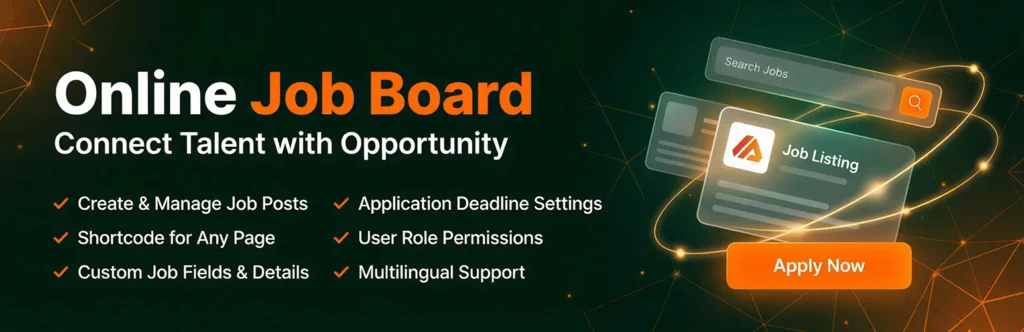
Why? Because it strikes the perfect balance between simplicity and power.
Most plugins are bloated with features you’ll never use, slowing down your site. The online job board is lightweight. It doesn’t load 20 different scripts on every page. It loads only what it needs, ensuring your Core Web Vitals stay green.
Key Features Breakdown:
- Unlimited Jobs: No artificial limits on how many listings you can post.
- Company Profiles: display logos, slogans, and company descriptions.
- Smart Expiry: Jobs automatically disappear (or close) after a set date, so you don’t feature “dead” listings.
- Developer Friendly: If you know CSS, every element has clean classes for easy customization.
- Shortcode System: You can place your job board on any page using a simple shortcode [wfojb-all-jobs].
Now, let’s build your board.
Step-by-Step Tutorial: Launching in 15 Minutes
Step 1: Installation and Activation
The installation process is standard WordPress.
- Log in to your WordPress Dashboard.
- Navigate to Plugins > Add New.
- In the search bar top-right, type: Online Job Board
- Look for the plugin with the blue logo author listed as WPFrank (or similar contributors).
- Click Install Now.
- Once installed, click Activate.
You will now see a new menu item in your sidebar: “Online Job Board”.
Step 2: The “1-Minute” Configuration
Before we add content, let’s configure the engine. Go to Online Job Board > Template Settings.
This dashboard is clean and intuitive. Here are the settings I recommend for a new board:
- Templates: The free version comes with the “Classic List” template. It’s clean, professional, and fits almost any theme.
- Layout View: Set this to Table. It’s the user standard for job boards. (The “Grid” view is a Pro feature, which we will discuss later.
- Visibility:
- Hide Page Title: check this ON. Usually, your theme’s default “Archives: Online Job Board” title is ugly. Hiding it lets the plugin’s clean interface take over.
- Show Category Filter: ON. Essential for navigation.
- Show Location Filter: ON. Essential for remote/local sorting.
- Show Search Box: ON.
- Jobs Per Page: Set this to 10. If you set it too high (like 50), your page load speed might suffer. 10 is the industry standard.
Click Save Changes. You’ll see a success toast notification.
Step 3: Setting Up Your Taxonomy (Categories & Locations)
Your job board needs structure. You don’t want users typing “San Francisco,” “SF,” and “San Fran” separately. You want standardized choices.
1. Create Job Categories:
- Go to Online Job Board > Job Categories.
- Add generalized categories for your niche.
- Example: If you are a tech board: “Frontend”, “Backend”, “Design”, “DevOps”.
- Example: If you are a general board: “Sales”, “Customer Support”, “Management”.
- Don’t add too many! 5-10 is a good start.
2. Create Job Locations:
- Go to Online Job Board > Job Locations.
- Add major cities or regions.
- Pro Tip: Create a location called “Remote”. This is the most searched “location” in the world. Even if you are a local board, having a “Remote / Hybrid” option is smart.
Step 4: Posting Your First Job
Now, let’s populate your board.
- Click Add New Job.
- Job Title: Be specific. Instead of “Marketing Wizard,” use “Senior Content Marketing Manager”. Specific titles rank better in Google.
- Description: Use the main content editor.
- Structure: Use H3 headers for “About Us”, “Role Requirements”, and “Benefits”.
- Formatting: Use bullet points. Candidates skim lists; they don’t read walls of text.
- Job Data (Meta Box): Scroll down to the box below the editor. This is crucial data.
- Position: Choose specific types (Full Time, Part Time, Contract).
- Salary: This field accepts text. You can put “$50,000” or “$25/hr”. Always include salary. Listings with salaries get 40% more clicks.
- Company Name & Logo: Uploading a logo makes your board look trustworthy. If you don’t have one, use a generic icon.
- Button Text: Default is “Apply Now”. You can change this to “Visit Website” or “Send Email”.
- Button URL: Where does the candidate go?
- Email: Enter mailto:jobs@example.com
- External URL: Enter the link to your Greenhouse, Lever, or Google Form application.
- Sidebar: Check the correct Category and Location.
- Featured Image: This is optional, but some themes use it for social media previews.
Hit Publish. Congratulations, your first job is live!
Step 5: The “Shortcode” Magic
The plugin doesn’t force a page on you. You get to decide where the job board lives.
- Create a new WordPress Page (Pages > Add New).
- Call it “Careers” or “Job Board”.
- In the content area, paste: [wfojb-all-jobs]
- Publish.
Visit that page, and you will see your job listing, the search bar, and the filters all working perfectly.
Advanced Shortcode Attributes
Want more control? The shortcode accepts parameters.
- Template: Force a specific design template. [wfojb-all-jobs template=”1″]
- Columns: (If using grid view) Control column count. [wfojb-all-jobs columns=”3″]
3 Strategies to Monetize Your Job Board
You’ve built it. Now, how do you make money from it?
1. Charged Listings (Pro Feature)
The biggest revenue model for job boards is charging companies to post. To do this, you’ll need the Pro Version of the plugin, which allows Frontend Submission.
- Create a “Post a Job” page.
- Charge $50 – $200 per listing via PayPal/Stripe (integrated in Pro).
- Companies fill out the form, pay, and the job goes live. Passive income!
2. Featured Listings
In the job editor, there is a “Featured Job” checkbox. Featured jobs usually have a distinct background color or border and stay at the top of the list. You can charge a premium (e.g., +$50) to “Feature” a listing for 30 days.
3. Traffic & Affiliate Marketing
Even if you post jobs for free, a job board drives massive traffic.
- Resume Services: Affiliate link to resume writing services (like TopResume).
- Courses: If you have high traffic for “Python Jobs”, place sidebar ads for Python courses on Udemy or Coursera.
Troubleshooting Common Issues
Here are the most common hiccups beginners face and how to fix them quickly.
1. “My Job Board Page is a 404 Error!”
- Fix: This is usually a permalink issue. Go to Settings > Permalinks in your WordPress dashboard and just click “Save Changes” (you don’t need to change anything). This flushes the rewrite rules and fixes the 404.
2. “The Search Bar Isn’t Working!”
- Fix: Make sure you actually have jobs published! The search bar needs content to index. Also, check your Template Settings to ensure “Show Search Box” is toggled ON.
3. “The Design Looks Weird on Mobile.”
- Fix: The Online Job Board plugin is responsive, but your theme might be interfering. Try switching to the “Classic List” template in settings, which is the most bulletproof design for mobile screens.
Why Google Jobs Schema Is Your Best Friend
We touched on this earlier, but it deserves its own section. Schema Markup is invisible code that tells Google, “Hey, this is a job posting!”
Without this plugin, you would have to manually code JSON-LD for every single post. If you messed up a comma, Google would ignore it.
The Online Job Board plugin automates this.
- It maps your “Job Title” to the title.
- It maps your “Company Name” to hiringOrganization.
- It maps “Location” to jobLocation.
How to verify it works:
- Publish a job.
- Copy the URL of that job listing.
- Go to Google’s Rich Results Test tool (search for it).
- Paste your URL.
- It should say “Job Posting: Detected”.
This means your listing is eligible to appear in the blue widget box at the top of Google search results—often above the organic results!
Conclusion: Start Building Today
There has never been a better time to launch a niche job board. The “Great Resignation” and the shift to remote work mean people are constantly looking for new opportunities.
By using the Online Job Board plugin for WordPress, you significantly lower the barrier to entry. You don’t need a developer. You don’t update complex code. You just install, configure, and curate.
Your Action Plan:
- Install the plugin today.
- Post 5 “seed” jobs (even if you grab them from other sites—just link back to the original application).
- Create a “Careers” page with the shortcode.
- Share your new board on LinkedIn or Twitter.
The possibilities are endless. Stop overthinking the tech stack and start connecting people with their dream careers.
Ready to go Pro? If you eventually need Frontend Submission, Grid Layouts, or Analytics, the Pro upgrade is seamless. But for now, the free version is a powerhouse waiting for you to unleash it.
Download the Online Job Board today, and happy hiring!
Leave a Reply