
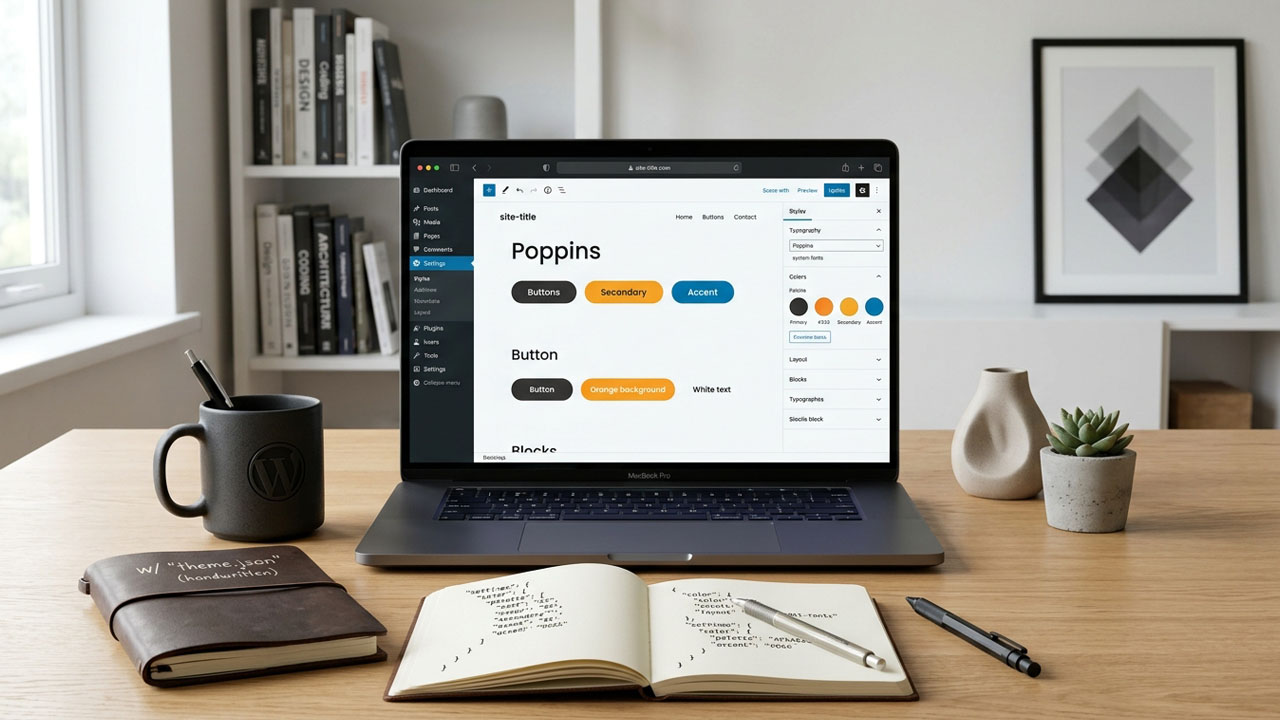
Building a WordPress theme used to mean writing thousands of lines of custom CSS and cluttering your functions.php file with endless add_theme_support() declarations. If a client wanted to change their primary brand color, you had to manually hunt down hardcoded hex codes across multiple stylesheets or rely on heavy, bloated page builders.
The introduction of Full Site Editing (FSE) completely rewrote the rules of theme development. Today, if you want to build scalable, performant WordPress sites, you must master theme.json.
This single configuration file is the central nervous system of modern WordPress block themes. It dictates exactly which design tools are available to users in the Site Editor, generates highly optimized CSS variables on the fly, and controls the global styles for every single block on your website.
Here is an advanced developer’s guide to mastering theme.json and building global styles for WordPress block themes without writing redundant CSS.
The Architecture of theme.json
To master theme.json, you must understand its strict hierarchical structure. By 2026, the API is highly mature (utilizing Version 3), and it separates your design logic into two distinct primary categories: Settings and Styles.
1. Settings (The Controls)
The settings object defines the boundaries of what a user can actually do inside the WordPress Site Editor. This is where you declare your brand’s color palette, define typography presets, and toggle specific UI controls on or off. If you want to prevent a client from changing the padding on a core group block, you disable it in the settings.
2. Styles (The Application)
The styles object is where you actually apply your predefined settings to the frontend of the website. Instead of writing standard CSS, you map the design tokens you created in the settings object to the root of the site, or to specific WordPress blocks.
Step-by-Step Implementation Guide
Let’s look at exactly how to construct a robust theme.json file from scratch, complete with custom palettes and block-specific styling.
1. The Basic Skeleton
Every theme.json file must sit in the root directory of your active theme. It begins by declaring the schema and the API version. As of current WordPress standards, you should be using version 3.
{
	"$schema": "https://schemas.wp.org/trunk/theme.json",
	"version": 3,
	"settings": {},
	"styles": {}
}
2. Defining Global Settings and Palettes
Next, we populate the settings object. In this example, we will disable custom colors (forcing the user to only use our predefined brand colors), define a custom color palette, and set up a fluid typography preset.
Notice how we use strict slug names. WordPress automatically takes these slugs and generates CSS Custom Properties (variables) on the frontend, such as --wp--preset--color--brand-primary.
{
	"version": 3,
	"settings": {
		"color": {
			"custom": false,
			"palette": [
				{
					"slug": "brand-primary",
					"color": "#005a9c",
					"name": "Brand Primary"
				},
				{
					"slug": "brand-secondary",
					"color": "#f4a261",
					"name": "Brand Secondary"
				}
			]
		},
		"typography": {
			"fluid": true,
			"fontSizes": [
				{
					"slug": "base",
					"size": "1rem",
					"name": "Base Size"
				},
				{
					"slug": "heading-large",
					"size": "clamp(2rem, 5vw, 3.5rem)",
					"name": "Large Heading"
				}
			]
		}
	}
}
3. Applying Global Styles
Now that our settings are defined, we need to apply them to the frontend using the styles object. We will map our “brand-primary” color to the overall text of the site, and apply our fluid typography to the root document.
{
	"version": 3,
	"settings": {
        // ... previous settings object
	},
	"styles": {
		"color": {
			"background": "#ffffff",
			"text": "var(--wp--preset--color--brand-primary)"
		},
		"typography": {
			"fontSize": "var(--wp--preset--font-size--base)",
			"fontFamily": "system-ui, sans-serif"
		}
	}
}
4. Targeting Specific Blocks
The true power of theme.json lies in its ability to style specific core or custom blocks globally. Instead of writing CSS to target .wp-block-button__link, you simply declare the block namespace inside the blocks object within your styles.
Here, we will automatically style every button on the website to use our secondary brand color, ensuring absolute consistency without a single line of traditional CSS.
{
	"version": 3,
	"styles": {
		"blocks": {
			"core/button": {
				"color": {
					"background": "var(--wp--preset--color--brand-secondary)",
					"text": "#ffffff"
				},
				"border": {
					"radius": "8px"
				},
				"spacing": {
					"padding": {
						"top": "0.75rem",
						"bottom": "0.75rem",
						"left": "1.5rem",
						"right": "1.5rem"
					}
				}
			}
		}
	}
}
Advanced Capabilities in Modern Block Themes
Once you master the basic architecture of theme.json, you can leverage its advanced capabilities to drastically speed up theme development.
Style Variations
Modern block themes rarely rely on just one design. By placing additional JSON files inside a /styles/ directory within your theme (e.g., dark-mode.json), you create Style Variations. This allows site admins to instantly swap the entire look and feel of the website—changing all typography, colors, and block styling—with a single click in the Site Editor, without changing the active theme.
Fluid Typography and Spacing
Hardcoding media queries for tablet and mobile screens is largely obsolete. By enabling "fluid": true in your typography settings, the WordPress core engine automatically calculates viewport math (using CSS clamp()) to scale your fonts and spacing scales perfectly across all devices.
Frequently Asked Questions (FAQ)
Can I still use traditional CSS in a block theme?
Yes, absolutely. While theme.json should handle your global styles, color palettes, and typography grids, you can still enqueue standard stylesheets for highly complex, bespoke animations or layout adjustments that the JSON API cannot currently handle.
How do I overwrite core block styles using theme.json?
You overwrite core styles by targeting the specific block namespace (e.g., core/quote or core/heading) inside the styles.blocks object of your theme.json file. Any properties you define here will automatically override the default WordPress core styles for that specific block.
Does theme.json work with classic themes?
While theme.json was designed specifically for building global styles for WordPress block themes, classic themes can adopt a limited version of it. By placing a theme.json file in a classic theme, you can control the block settings (like the color palette) for the post editor, though you will not have access to the full Site Editor experience.