
If you have spent any significant amount of time building or managing a WordPress website, you have almost certainly slammed headfirst into this dreaded, red-bordered error message:
“The uploaded file exceeds the upload_max_filesize directive in php.ini.”
It usually happens at the worst possible time. You are trying to upload a high-resolution hero image or a large file, a downloadable PDF whitepaper, an audio podcast episode, or a ZIP file for your users. You drag the file into the WordPress Media Library, wait a few seconds, and boom—rejected.
Out of the box, WordPress is incredibly user-friendly for handling standard web-optimized images. But when your site scales and you start dealing with large media files, the default setup can feel like trying to push a boulder through a garden hose.
In this guide, we are going to look at the practical ways to bypass WordPress upload limits, explore the traditional FTP workflows for heavy lifting, and dive into modern, efficient solutions for managing a massive media library without pulling your hair out.
Why Does WordPress Limit Your Uploads?
Before we fix the problem, it helps to understand why the roadblock exists.
WordPress doesn’t arbitrarily limit your file sizes just to annoy you. These limits are dictated by your web hosting environment, specifically your server’s PHP settings. Web hosts implement these caps (often set as low as 2MB or 8MB on cheap shared hosting) to prevent a single user from hogging server resources. If a dozen users on a shared server simultaneously tried to upload 1GB video files, the server would crash, taking everyone’s websites down with it.
You can check your current limit simply by going to Media > Add New in your WordPress dashboard. Right below the drag-and-drop box, you will see a line of text stating: “Maximum upload file size: $$X$$
MB.”
If that number is too small for your needs, you have a few ways to force it higher.
How to Increase Your WordPress Upload Limit
If you need to upload a 50MB PDF or a 20MB high-res image gallery archive, you need to adjust your PHP directives. There are four key metrics you are actually trying to change:
- upload_max_filesize: The absolute maximum size of an uploaded file.
- post_max_size: The maximum size of the entire HTTP POST request (this must be larger than the upload_max_filesize).
- memory_limit: The amount of server memory a script can use (must be larger than post_max_size).
- max_execution_time: How long (in seconds) a script is allowed to run before timing out. Large uploads take time, so this needs to be increased.
Here are the most common ways to safely increase these limits.
Method 1: The Hosting Control Panel (Recommended)
If you are using a modern managed host or a control panel like cPanel, Plesk, or SiteTools, you usually don’t need to touch a single line of code. Look for a setting named “Select PHP Version,” “PHP Settings,” or “MultiPHP INI Editor.” From there, you will find dropdown menus allowing you to increase your upload_max_filesize (e.g., to 128MB or 256MB) and your max_execution_time (e.g., to 300 seconds). Save your changes, and your WordPress dashboard should instantly reflect the new limit.
Method 2: Editing the .htaccess File
If you don’t have access to a visual PHP editor, you can modify your site’s .htaccess file. Connect to your site via your hosting file manager or FTP, find the .htaccess file in your root directory, and paste this at the bottom:
php_value upload_max_filesize 128M
php_value post_max_size 128M
php_value memory_limit 256M
php_value max_execution_time 300
php_value max_input_time 300
Note: If you are on an Nginx server rather than Apache, the .htaccess The method will not work, and you will need to edit your php.ini file or contact your host.
Method 3: The wp-config.php Tweak
Sometimes, simply adding a line to your wp-config.php The file can push the memory limits up, though this doesn’t always bypass strict host-level upload caps. Right before the line that says “That’s all, stop editing!” you can add:
@ini_set( 'upload_max_size' , '128M' );
@ini_set( 'post_max_size', '128M');
@ini_set( 'max_execution_time', '300' );
The Traditional Heavy Lifting: The FTP/SFTP Workflow
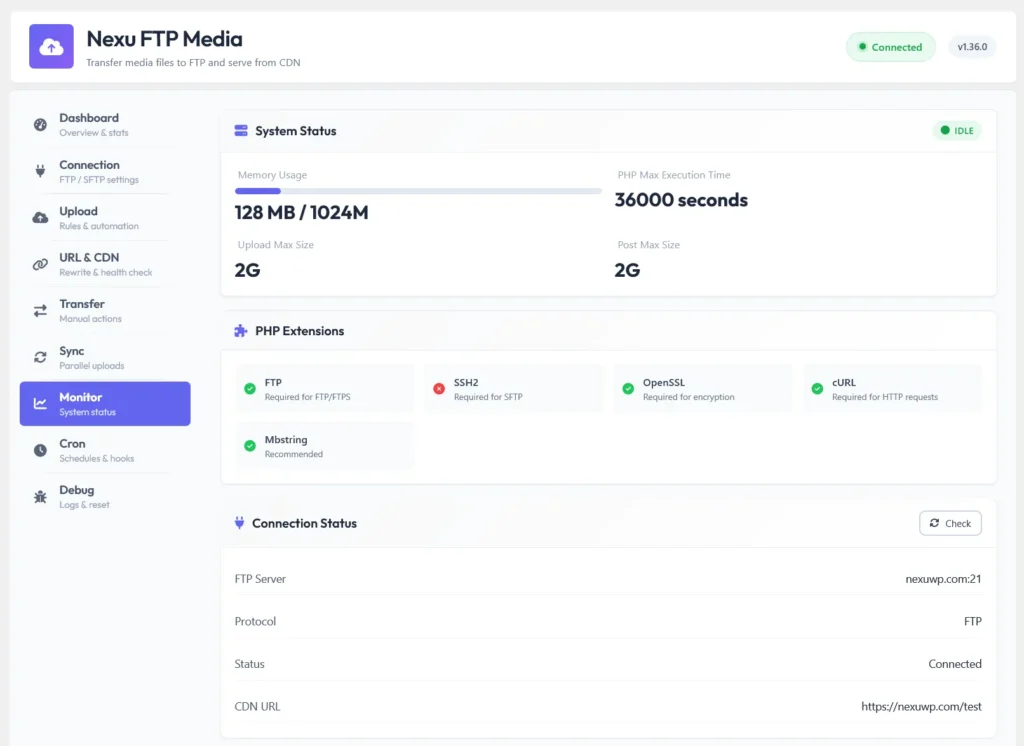
What happens if you need to upload a massive batch of files—say, 500 high-res raw images from a recent event, or a 2GB zip file? Even with increased PHP limits, uploading this through the browser is risky. If your Wi-Fi blinks or the browser tabs crash, the upload fails, and you have to start over.
This is where the traditional FTP (File Transfer Protocol) or SFTP (Secure FTP) workflow comes in.
Using an FTP client like FileZilla or Cyberduck allows you to connect directly to your web server. You can queue up hundreds of megabytes or even gigabytes of files, and the FTP client will reliably chunk them up and send them to your server, automatically resuming if the connection drops.
The FTP Media Disconnect. There is a catch to this workflow. If you drag a file into your /wp-content/uploads/ folder via FTP, you will notice it doesn’t show up in your WordPress Media Library.
Why? Because the Media Library isn’t just a visual folder reader. Every time you upload a file through the dashboard, WordPress registers that file in the MySQL database (specifically in the wp_posts and wp_postmeta tables). FTP bypasses the database entirely. The files are sitting on your server, but WordPress has no idea they exist.
The Solution: Synchronizing FTP Uploads To fix this, you need a bridging tool. Plugins like Media Sync or Bulk Media Register are built exactly for this scenario. Once you have uploaded your massive files via FTP into the current year/month folder (e.g., /wp-content/uploads/2026/03/), you log into your WordPress dashboard, run the sync plugin, and it scans your uploads folder. It detects the unregistered files and adds them to the database, making them instantly available in your Media Library for use in posts and pages.
While manual sync tools are helpful, a more robust and automated approach is to use the WP FTP Media plugin.
Modern Solutions: Dashboard File Managers and Cloud Offloading
While FTP is reliable, it requires external software and server credentials, which isn’t ideal if you are managing a team of editors or content creators who just need to get their work done. Thankfully, modern WordPress ecosystems offer better ways to handle large files efficiently.
Using File Manager Plugins
If you want the power of direct server access without leaving WordPress, you can use plugins like WP File Manager or Advanced File Manager. These plugins essentially put an FTP-like interface right inside your WordPress admin area. You can drag, drop, unzip, and move large files around your server architecture easily. However, just like FTP, if you upload an image directly to an uploads folder using these tools, you still need to sync it to the database.
The Ultimate Fix for Large Files: Cloud Offloading
If you are consistently dealing with heavy media—especially video, high-quality audio, or large downloadable software—storing those files on your web hosting server is actually a terrible idea.
Web servers are optimized for rendering PHP and querying databases to serve web pages quickly. They are not optimized for streaming large media files. Delivering a 500MB video from your standard web host will slow down your entire site, drain your bandwidth allocation, and result in a buffering nightmare for the user.
The modern, professional workflow is Cloud Offloading.
Instead of storing media on your web host, you store it on dedicated, cheap cloud storage like Amazon S3, Google Cloud Storage, or DigitalOcean Spaces, and serve it through a Content Delivery Network (CDN).
Plugins like WP Offload Media make this entirely seamless. You upload a large file to your WordPress Media Library as usual. The plugin intercepts the file, copies it directly to your Amazon S3 bucket, changes the URL in WordPress to point to the cloud, and then (optionally) deletes the heavy file from your local server.
This keeps your web server incredibly light, your backups tiny, and your media delivery blazing fast. For videos specifically, you should bypass the media library entirely and use specialized video hosts like Vimeo, Wistia, or Bunny.net Stream, embedding the links into your posts.
Scaling Workflows: Media and Content Automation
When you reach the point where you are utilizing cloud offloading and FTP bulk uploads, you are likely managing a highly trafficked or complex website. At this scale, manual workflows become your biggest bottleneck.
Efficient site management isn’t just about handling large media files; it’s about automating the entire editorial pipeline. For example, if you run a multilingual site, you are not just managing heavy images for multiple regions, but you are also dealing with massive amounts of translated text. Manually coordinating translators and publishing schedules can slow your site’s growth just as much as a server timeout error.
To truly streamline a global site, you need to look at intelligent automation across the board. A great example of this is Automating WPML Translation Queues in WordPress with AI. By routing your localization tasks through advanced AI models rather than waiting on manual translation pipelines, you can publish content simultaneously across all languages. Pairing an automated translation queue with a seamless cloud-offloaded media library means your site can scale globally without bogging down your server or your team.
Best Practices for Keeping Your Media Library Clean
Finally, managing large files isn’t just about how you get them onto the server; it’s about how you organize them once they are there. A bloated Media Library will slow down your admin dashboard and make finding assets impossible.
- Implement Folder Structures: By default, WordPress organizes media by Year and Month. This is useless if you are trying to find “that one PDF from the marketing campaign.” Plugins like FileBird or Real Media Library allow you to create virtual drag-and-drop folders (e.g., “Whitepapers,” “Blog Headers,” “Staff Photos”) right inside the native Media Library.
- Compress Before You Upload: Never upload a 6MB photograph taken straight from a DSLR camera. Use tools like TinyPNG or local software like Photoshop or ImageOptim to compress images to under 300KB before they hit your server. If you must automate this, use a plugin like ShortPixel or Smush to crush file sizes on upload.
- Embrace WebP and AVIF: Transition away from heavy PNGs and JPEGs. Modern formats like WebP offer the same visual quality at a fraction of the file size.
- Clean Up Unused Media: Over time, your server will fill up with orphaned images that aren’t attached to any posts. Use plugins like Media Cleaner to scan your site, identify files that aren’t being used anywhere, and safely delete them to reclaim server space.
Final Thoughts
Running into WordPress upload limits is a rite of passage for every webmaster. But it shouldn’t be a permanent roadblock.
By understanding how to tweak your server’s PHP limits for quick fixes, utilizing FTP and sync plugins for bulk jobs, and eventually transitioning to cloud offloading for heavy media, you can transform your WordPress site from a restrictive platform into a highly efficient, scalable content machine. Treat your server space like premium real estate—keep the heavy lifting in the cloud, automate your workflows, and your site will remain fast, lean, and reliable.