
WordPress site owners often assume that adding a live weather widget and dynamic elements means installing yet another plugin. The truth is simpler. For something as focused as a live clock or current weather display, a lightweight embed snippet does the job better, faster, and without the overhead that comes from a full plugin installation. This guide walks through exactly how to do that, from the most basic paste-and-go embeds to more sophisticated options that suit agency portfolios and custom-built themes.
What You Will Learn:
1. Where to find a full range of embeddable time and weather tools that work on any WordPress page.
2. How to paste a weather embed into any page for location-sensitive content with no plugin required.
3. Which path to take if you are building a custom WordPress theme or template and want programmatic control.
Why WordPress Owners Are Moving Away From Heavy Widget Plugins
Plugins are great, but they carry a cost. Every plugin you install adds database queries, JavaScript files, and often bloated settings panels you never touch. For something simple like displaying the current time or local weather, a plugin is overkill.
Embed snippets load from an external source, stay updated automatically, and add almost nothing to your server load. There is nothing to configure, update, or troubleshoot inside the WordPress dashboard. You paste a short snippet into a Custom HTML block, and the widget appears. That is the entire process.
This approach fits well with how modern WordPress is actually used. The block editor makes dropping in raw HTML straightforward, and the WordPress block editor documentation covers what Custom HTML blocks can handle, including third-party embeds like the ones in this guide.
The Full Suite of Embeddable Tools in One Place
Before picking a specific widget, it helps to know what is available. The collection of clock widgets covers a wide range of formats, from analog faces and countdown timers to digital displays in various styles and time zones. You can browse by visual format or use case, which makes it straightforward to match a widget to your site’s design without trial and error.
This is also where you get the embed code. Each widget page shows you the snippet to copy, and the customization options, including time zone selection, color themes, and display size, are all handled before you generate the code. By the time you are pasting it into WordPress, there is nothing left to configure on your end.
Adding a Weather Embed to Location-Based Pages
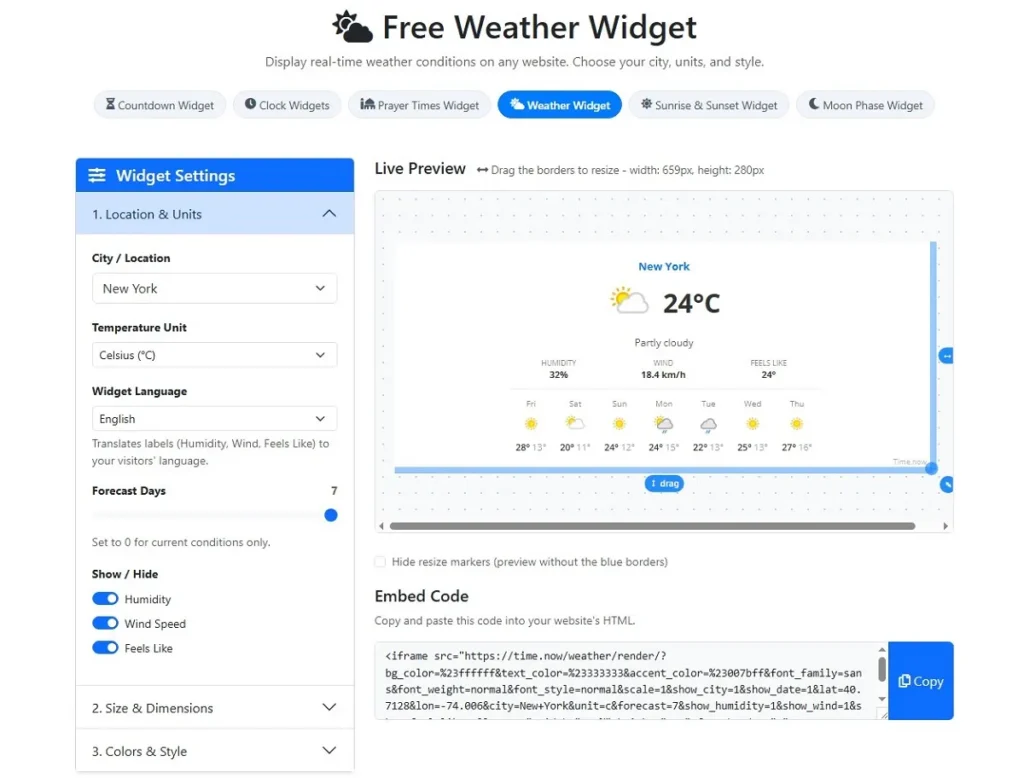
If your site targets visitors in a specific region, showing local weather is a small touch that adds real value. A local weather display makes your site feel current and relevant without requiring any geolocation plugin or API configuration on your part.
The weather widget is built for exactly this scenario. You choose a city or location, pick a display format, and copy the embed code. In WordPress, you open the page you want to update, add a Custom HTML block where you want the weather display to appear, and paste the code in. Save, and the widget is live.
This works especially well for:
- Local business pages that want to reflect current conditions for their area
- Travel and tourism content where seasonal context matters
- Regional news or community sites where local relevance is part of the brand
- Real estate pages targeting a specific city or neighborhood
The widget updates automatically, so there is nothing to maintain after the initial paste.
Going Beyond Widgets: Immersive Weather Effects
If you want to go beyond simple text-based forecast widgets and create a fully immersive seasonal atmosphere, you can use specialized animation tools. For instance, the Weather Effect WordPress Plugin allows you to display falling snowflakes in winter, autumn leaves, or raindrops across your visitors’ screens. It’s an easy, highly visual way to celebrate seasonal changes or run holiday promotions without editing your theme code or affecting page performance.
A Digital Clock for Portfolio and Agency Sites
Not every site needs weather. For portfolio sites, creative agencies, and professional services, a clean live clock adds a sense of presence and activity without being distracting. It tells visitors something live is happening on this page, which is a subtle but effective way to make a site feel less static.
The digital clock widget variant is styled with that kind of context in mind. It is clean, minimal, and easy to fit into a sidebar, footer, or a dedicated section on a landing page. Agency sites that work with international clients can set the clock to a client’s time zone, which is a small but thoughtful detail for a contact or scheduling page.
The setup process is the same as any other embed: visit the page, choose your options, copy the embed code, and paste it into a Custom HTML block in the block editor.
How Theme Builders Can Pull Live Time Data Programmatically
If you are building a custom WordPress theme rather than editing existing pages, the embed snippet approach might feel too manual. Theme builders often want to pull live data directly into templates, where it can be placed dynamically and styled consistently with the rest of the design system.
That is where the time API becomes a better tool. The developer section gives you endpoint documentation, authentication details, and code samples showing how to request current time data for any location. You can pull this into a WordPress template using a simple PHP request, then display the result wherever the template renders.
This path requires more technical setup, but it gives you complete control over the output format and placement. You are not working with an iframe, so you can style the displayed time using your theme’s CSS. The data fits into your design language rather than appearing as a separate widget block.
- Review the API endpoint documentation to understand the response format.
- Add a PHP function to your theme’s functions.php file to fetch the data on page load.
- Call that function in the appropriate template file where you want the time displayed.
- Style the output using your existing theme CSS so it matches your typography and layout.
- Test across time zones if your site serves international audiences.
This is the right approach for theme developers who want the functionality to feel native rather than embedded.
Keeping Your WordPress Site Fast After Adding Live Widgets
One of the main reasons to avoid plugin-heavy setups is page speed. Core Web Vitals treat load time seriously, and a site weighted down by plugins loading their own scripts on every page will feel the pressure in search rankings.
When you embed a widget using a snippet rather than a plugin, the external script loads without blocking your main content in most configurations. Your server handles the page, the browser handles the widget, and neither waits on the other. The result is a faster perceived load time with no extra work on your part.
There are a few things worth checking after you add any embed:
- Use your browser’s developer tools to confirm the widget loads without blocking the main content
- Check your page speed score before and after so you have a real baseline comparison
- If the widget appears in a sidebar, verify whether that sidebar renders on every page load or only where you intend it
None of these steps requires deep technical knowledge. The Network tab in any modern browser shows you exactly what is loading and how long each request takes.
Making Your Site Feel More Alive Without Overbuilding It
Live time and weather widgets are a small category of features, but they represent a broader principle worth keeping in mind as you build out your WordPress site. You do not need complexity to feel professional. A well-placed live clock on an agency landing page or a weather display on a regional content hub signals that the site is maintained and current. That impression matters to visitors, even if they cannot quite articulate why.
The approach outlined in this article covers most use cases without a single new plugin. For theme builders, the developer route adds full programmatic control. Either way, the weight added to your site is minimal, and the payoff, for the right context, is real.
Start with what your visitors would actually find useful. A local weather display on a city-focused page. A live clock on a contact page serving multiple time zones. A digital clock on an agency site that projects activity and presence. Small additions chosen with intention are always better than feature bloat that nobody notices.