
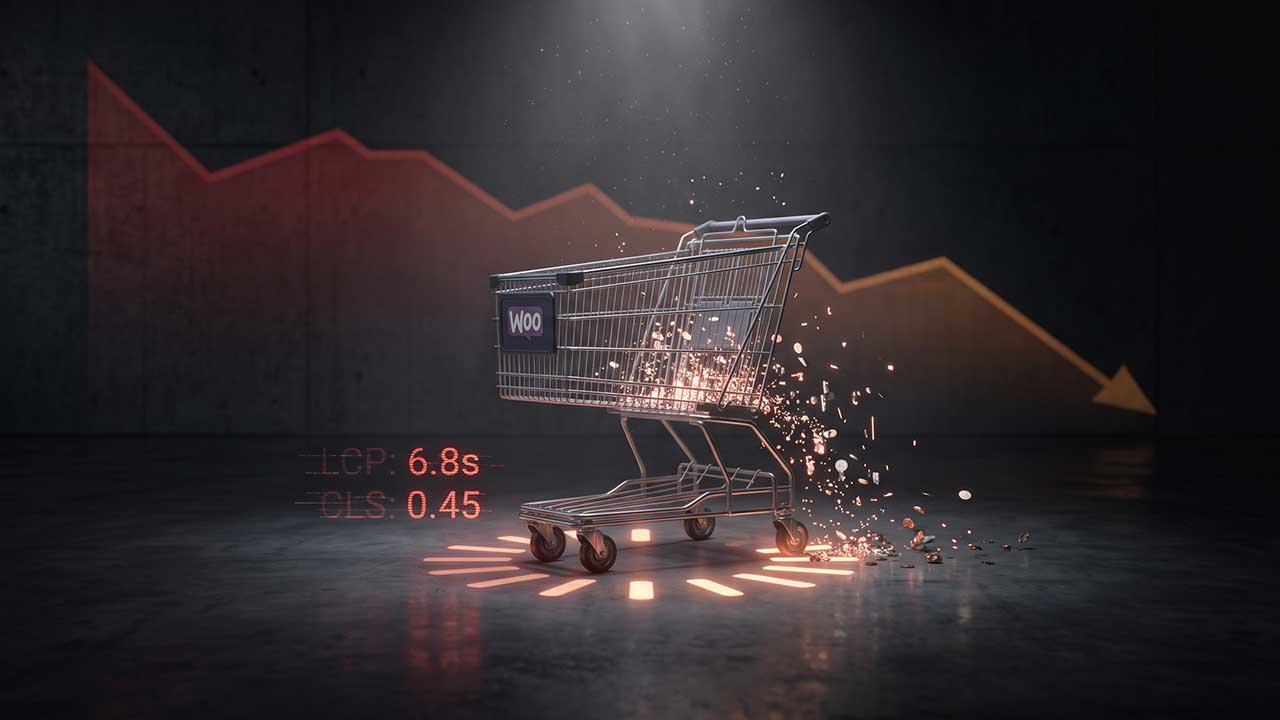
Ask a store owner how their Core Web Vitals look and you will usually get a homepage score. That number is close to meaningless for a shop.
The homepage is the page a store optimises first, caches hardest, and tests most. It is also the page with the least commercial risk attached to it. Nobody abandons a purchase on the homepage. The pages where money is actually decided — product, cart, checkout — are the dynamic ones, the least cacheable ones, and the ones where LCP, INP, and CLS fail first.
This is about where WooCommerce specifically loses, and why the usual advice lands in the wrong place.
The homepage is the wrong baseline
Field data in Search Console is grouped by URL group, not by site average. A store can show “good” overall while its checkout sits in “poor” for months, because the homepage and blog carry enough traffic to drag the aggregate up.
Before optimising anything, list the templates that matter and treat them as separate projects:
wp post list --post_type=product --posts_per_page=20 --fields=ID,post_title --format=csv
Test, at minimum:
- the shop archive,
- a simple product page,
- a variable product page,
- one category or attribute archive,
- the cart,
- the checkout,
- one page with a promotional block or a heavy sidebar.
If those seven look fine, then the homepage score is worth looking at. Not before. Which template a URL resolves to matters as much as the template itself, and structuring WordPress pages for SEO and performance covers the routing and hierarchy side of that.
LCP: the product image is usually late for a reason
Largest Contentful Paint measures when the biggest visible element finishes painting. On a product page that element is almost always the main image. On the shop archive it is usually the first row of product cards.
The failures repeat across stores:
- The main image is lazy-loaded. Lazy loading delays exactly the element you want first. The leading product image should load eagerly.
- A hero or promo banner outranks it. If a wide banner sits above the product image, the banner becomes the LCP element, and now your largest paint depends on a marketing block instead of the product.
- The theme loads a gallery script before the image. The image is ready, but the paint waits on JavaScript that measures and repositions it.
- The source image is far larger than the slot. A 3000px original in a 600px container costs bandwidth on every first visit.
One practical check is to ask the browser which element it chose, rather than assuming:
new PerformanceObserver((list) => {
  for (const entry of list.getEntries()) {
    console.log(entry.startTime, entry.element, entry.url);
  }
}).observe({ type: 'largest-contentful-paint', buffered: true });
Paste that in the console on a real product page, with cache disabled and mobile emulation on. The element it prints is the one to fix. On many stores it turns out to be a slider, a banner, or a gallery wrapper — not the image anyone was optimising.
Fixes that hold up: eager-load the leading image, preload it when the template is predictable, keep promotional banners out of the LCP position, and size images to their slot. Format and compression matter too, and beyond Core Web Vitals: the hidden performance metrics covers the measurements that sit underneath these three.
INP: cart and checkout are where interactions get expensive
Interaction to Next Paint replaced First Input Delay because FID only measured the delay before a handler started. INP measures the whole interaction: input delay, processing, and the next paint. That is a much harsher test for a store, because cart and checkout do real work after every click.
Where WooCommerce stores usually lose INP:
- quantity changes that recalculate totals and re-render several blocks,
- coupon add and remove, which often triggers a full cart refresh,
- shipping calculator updates,
- checkout field changes that fire validation and conditional field rendering,
- a chat widget or analytics script running on the same interaction,
- jQuery-based handlers attached to many elements at once.
The characteristic symptom is a page that loads quickly but feels sticky the moment a customer touches it. A cart that takes 2.5 seconds to show a new total is an INP failure even if the page itself rendered in under a second.
A cheap way to find the offenders is to record the interactions and read the durations:
new PerformanceObserver((list) => {
  for (const entry of list.getEntries()) {
    if (entry.duration > 200) {
      console.log(Math.round(entry.duration) + 'ms', entry.name);
    }
  }
}).observe({ type: 'event', durationThreshold: 200, buffered: true });
Then perform the exact actions a customer performs: add to cart, change quantity, apply a coupon, remove an item, submit checkout. Anything logged above 200ms is a candidate. Google’s INP guidance explains the thresholds and Google’s long task guidance explains why breaking up one long handler usually helps more than micro-optimising it.
The highest-leverage fix on most stores is not code surgery. It is removing or deferring the third-party script that runs on cart updates. A chat widget, a tracking pixel, or an upsell script that re-evaluates on every cart change can cost more responsiveness than the entire theme.
CLS: layout shifts come from what arrives late
Cumulative Layout Shift punishes content that moves after it is visible. In a store, the shifts are almost always caused by something injected after first paint.
The usual suspects:
- a product gallery whose thumbnails push the main image down when they load,
- a promotional bar inserted above the header by a script,
- reviews or “related products” rendering without reserved space,
- a cookie banner that pushes content rather than overlaying it,
- font swapping to a wider face and reflowing headings,
- lazily loaded images without width and height attributes.
Reserving space is the fix, and it is almost always cheaper than the alternatives. A single field shift is enough to lose a good rating, and the PageSpeed score guide shows how one metric drags the reported score down. Give the gallery container a fixed aspect ratio, set explicit dimensions on images, render skeletons for injected blocks at their final size, and overlay the cookie banner instead of inserting it into the flow.
One detail worth knowing: CLS only counts shifts within the viewport, and shifts caused by user interaction are excluded. So a tab switch that expands a panel is not penalised, but a review block that appears two seconds after load very much is.
Cart and checkout deserve a separate audit
Cart and checkout are where all three vitals get harder at once:
- they are personalised, so full-page caching is off the table,
- they carry more scripts than any other template,
- they are where the customer is most sensitive to delay.
A checkout that renders a large promotional panel before the order summary can fail LCP for the same reason a product page does. A shipping calculator that blocks the main thread on every postcode change fails INP. Payment iframes that resize after load fail CLS. Three different metrics, one template, three separate causes.
That is why a single Lighthouse run on checkout tells you so little. Test each vital separately, and replay real interactions rather than only loading the page.
The broader conversion side of this is covered in making website checkout and order processing faster, which is worth reading alongside this piece — performance and flow problems on checkout tend to look identical to a customer.
Lab data and field data answer different questions
A lab test on a fast connection shows what the page can do. Field data shows what customers actually experienced. On a store, they disagree more than on a blog, because customer devices, extensions, and payment providers vary so much.
Practical rules:
- Use lab tests to find and verify a specific fix.
- Use Search Console field data to decide whether the fix mattered.
- Judge product, cart, and checkout separately, because an aggregate score hides the page that is failing.
- Re-check after a theme or plugin update, since store templates change more often than article templates.
Google’s Core Web Vitals documentation is the reference for thresholds and how the metrics are collected. Google’s PageSpeed Insights documentation explains how field and lab results are reported side by side, which is the distinction that matters most for store work.
What to fix first
If you only have time for three changes, these three cover most stores:
- Stop lazy-loading the leading product image and confirm with the observer script which element is actually LCP.
- Audit third-party scripts on cart and checkout, and defer anything not needed for the first interaction.
- Reserve space for every block that arrives after paint — gallery, reviews, promos, ads, banners.
Those are not the only fixes, but they are the ones that most often move the metric that is actually failing. Caching and CDN work is useful too, and the page speed optimisation guide covers that layer — it just rarely fixes an interaction or layout problem on its own. Where the concern is ranking rather than the metric itself, how to boost your SEO ranking puts Core Web Vitals in a wider context.
A short, repeatable test pass
Once a quarter, or after any major theme update, run this:
- Pick the seven templates listed earlier.
- For each, load it on mobile emulation with cache disabled and record the LCP element.
- Replay add-to-cart, quantity change, coupon, and checkout submit, logging events over 200ms.
- Scroll the full page slowly and watch for movement.
- Compare against field data in Search Console for the same URL groups.
Fifteen minutes per template, and you will know which vital is failing where. That is more useful than any single score, and it is the difference between optimising the homepage because it is easy and fixing the page where the sale is actually lost.
FAQ
Which Core Web Vital matters most for a WooCommerce store?
It depends on the template. Product and shop pages usually fail LCP on the main image. Cart and checkout usually fail INP because interactions trigger recalculations. CLS appears wherever gallery, review, or promo blocks arrive late.
Does a caching plugin fix WooCommerce Core Web Vitals?
Partly. Caching helps repeat visits to archive and product pages, but cart and checkout are personalised and often excluded. Caching does nothing for interaction latency or layout stability, which are two of the three metrics.
Why is checkout slower than the product page?
Checkout carries more scripts and more dynamic behaviour: totals, validation, shipping and payment widgets, conditional fields. It also cannot be cached the same way. That combination hurts responsiveness more than raw load time.
Should product images be lazy-loaded?
The main product image should not be. Lazy loading it delays the largest paint, which is the opposite of what LCP rewards. Images further down the page, and the rest of the gallery, can be lazy-loaded safely.
How do I find which element is failing LCP?
Use a PerformanceObserver for largest-contentful-paint in the browser console on a real page with cache disabled and mobile emulation on. It reports the element and its paint time, which is more reliable than guessing from the design.
Do payment and shipping widgets affect Core Web Vitals?
They can dominate INP and CLS on checkout. If a widget loads late, resizes after load, or blocks on interaction, it becomes the reason the page fails — and the fix is usually loading it more selectively rather than changing the theme.
Leave a Reply