
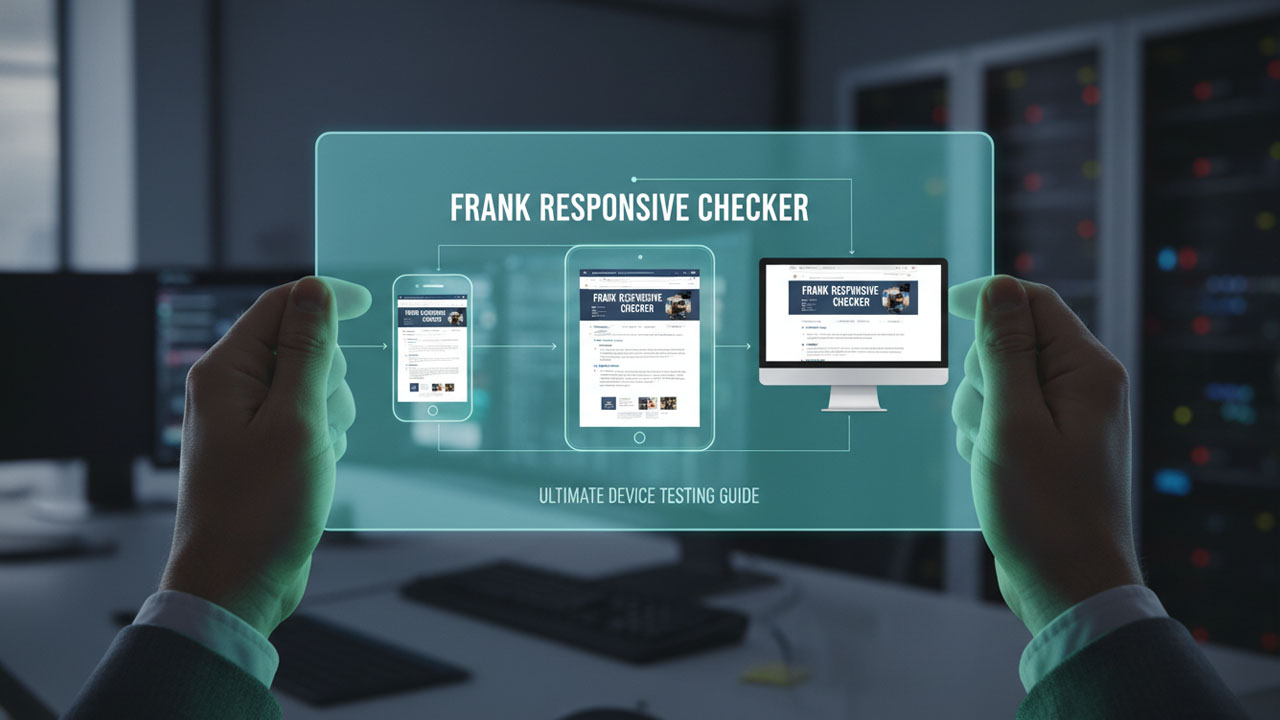
In today’s mobile-first world, a website that looks stunning on a desktop but breaks on a smartphone is a major liability. Over 55% of global web traffic comes from mobile devices, and Google uses mobile-first indexing to rank your pages.
If you want to ensure your WordPress website looks flawless on every screen size without leaving your dashboard, you need the Frank Responsive Checker plugin.
In this comprehensive guide, we will walk you through how Frank Responsive Checker works, explore its premium features, and show you step-by-step how to use it to optimize your site’s mobile experience.
What is the Frank Responsive Checker WordPress Plugin?
Frank Responsive Checker is a professional responsive design testing suite built directly into WordPress. Unlike default browser tools that only resize the window, this plugin runs a native iframe sandboxed emulator inside your admin dashboard or front-end page.
It allows you to preview, inspect, compare, and capture your site’s layout on over 50+ virtual devices—ranging from the latest iPhones and Android devices to laptops and high-res 2K desktops.
Key Features That Make Testing Effortless
- 50+ Pre-configured Device Viewports: Quick-switch between popular smartphones, tablets, and desktops (iPhone 14/15, Galaxy S23, iPad Air, HD Laptops, and more).
- Side-by-Side Comparison Mode: View up to 4 devices simultaneously with synchronized scrolling to compare responsiveness at a glance.
- Element Inspector & CSS Viewer: Click and inspect DOM elements directly inside the responsive frame to view computed styles.
- Temporary Shareable Preview Links: Generate secure, expiring links so clients or remote developers can see live, responsive mockups without a WordPress login.
- Thickbox Screenshot Gallery: Capture high-fidelity device screen frames, view them in an admin gallery, and export reports as a PDF.
- Network Speed Simulation: Test page loading times under simulated Slow 3G, Fast 3G, 4G, or Offline conditions.
- Touch Event Simulation: Emulate real touch swipes, double-taps, and long-press interactions.
Step-by-Step Guide: How to Use Frank Responsive Checker
Step 1: Open the Responsive Checker Panel
Once the plugin is active, you will see a new Responsive Checker button in the WordPress top admin toolbar (visible on both the front-end and the admin dashboard).
- Navigate to the page you want to test.
- Click Responsive Checker on the admin bar.
- The interactive testing suite will overlay on your screen instantly.
Step 2: Choose or Customize a Device Viewport
At the top device bar, you can select different screen presets:
- Mobile: iPhone SE, iPhone 14/15, Galaxy S23, Pixel 7.
- Tablet: iPad Mini, iPad Air, iPad Pro.
- Desktop: Laptop 13″, Laptop 15″, Desktop HD, Desktop 2K.
- Custom Width/Height: Input custom pixel values or drag the resize handles to test unique layout breakpoints.
- Rotate Control: Click the rotate button (or press
Ron your keyboard) to switch between Portrait and Landscape views instantly.
Step 3: Use Side-by-Side Comparison (Multi-Device Testing)
Tired of switching viewports one by one?
- Click the Compare mode button in the top bar.
- Click Add Panel to open multiple frames (up to 4 side-by-side).
- Assign a different device to each panel (e.g., iPhone, iPad, Laptop).
- Turn on Sync Scroll. When you scroll down in one viewport, all other panels scroll synchronously, letting you verify header, sidebar, and footer alignment across all screens at the same time.
Step 5: Generate Shareable Links for Clients
When building client websites, getting design sign-offs on mobile layouts can be difficult. Frank Responsive Checker simplifies this:
- Click the Share Link icon in the panel toolbar.
- Choose your expiration time (1 Hour, 24 Hours, 7 Days, or 30 Days).
- Click Generate Link.
- Copy the secure link and send it to your client. They will be able to interact with the responsive mockup directly in their web browser, even if they don’t have access to your WordPress dashboard.
Step 6: Capture Screenshots & Export Reports
Document your QA process or send reports to your design team:
- Click Take Screenshot to capture the active viewport frame.
- Click Capture All to snap screenshots of all active viewports at once.
- Open the Gallery tab to inspect captured screenshots, download them as a ZIP, or export a formatted PDF Report detailing the testing session.
Keyboard Shortcuts for Power Users
Work faster with hotkeys:
Esc— Close the preview panel / Exit fullscreen.←/→— Switch to the previous/next device preset.R— Rotate the device between portrait and landscape.S— Take a screenshot.C— Toggle multi-device comparison mode.F— Toggle fullscreen preview mode.?— Open the shortcut guide.1to9— Instantly switch to specific device presets.
How to Configure Plugin Settings
To adjust settings, go to your WordPress admin sidebar and click Responsive Checker -> Settings.
- General Tab: Set your default viewport preset, width, and height so that the panel opens up on your preferred device instantly.
- Features Tab: Toggle individual module features on/off (e.g., turn off Shareable Links or Network Throttling if you want to keep the testing panel lightweight).
- Access Control Tab: Control which WordPress user roles can access the tool. By default, access is restricted to Administrators, but you can enable it for Editors or Authors.
Final Thoughts: A Smarter Way to Build Responsive Sites
Frank Responsive Checker is a lightweight, feature-rich testing suite that speeds up front-end development, improves QA accuracy, and saves you from constantly resizing browser windows or deploying to external servers to test layouts.
Give it a try today and ensure that every visitor enjoys a premium, responsive experience on your WordPress site.
Want to learn more? Check out the Documentation submenu inside your WordPress dashboard for developer tips.